Account
Profile, password and two-factor
Your account settings page is where you change your name, email address and password, set up two-factor authentication, sign out other devices and delete your account. This page also covers the app's dark mode and where to find your notification settings.
Opening your account settings
- In the top-right corner of the app, click your name or avatar.
- Choose Manage Account.
You can also click Manage Account in the sidebar, under Account.
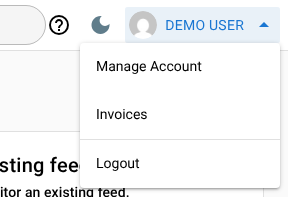
The settings page, headed Profile, opens in a simpler layout than the rest of the app. To go back, click Manage feeds at the top of the page.
The account menu also has Invoices (see Billing and plan changes) and Logout.
Profile information
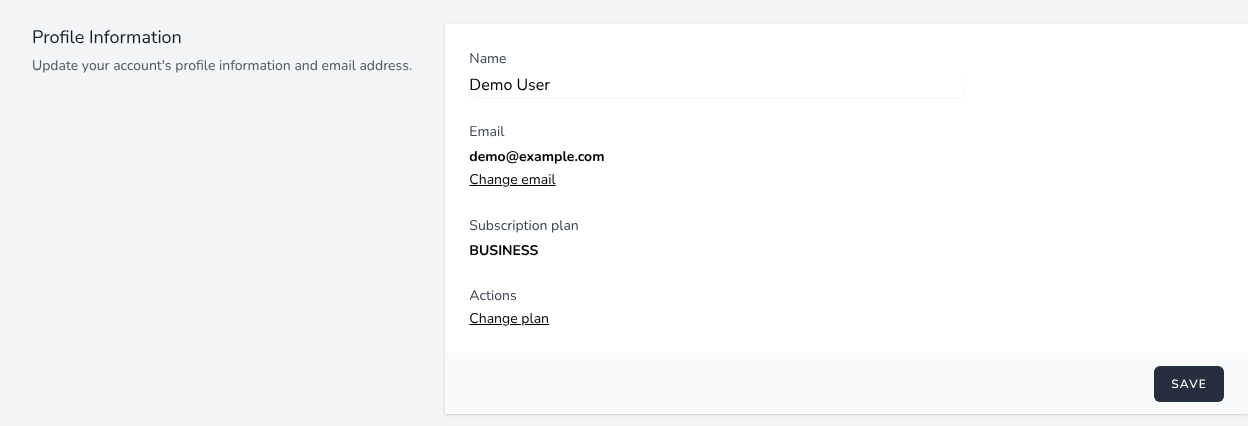
The Profile Information section shows:
- Name: change it and click Save.
- Email: your current address. To change it, see Changing your email address.
- Subscription plan and Actions: your plan, with links to change plan, change payment method, view invoices and cancel. See Billing and plan changes.
Your avatar in the app comes from Gravatar, based on your email address. You can't upload a photo to Feed Control itself.
Changing your email address
- Under Email, click Change email.
- Enter the new address. Make sure you can receive email there: you'll need to confirm it before you can use the app again.
- Click Save.
- Open the verification email sent to the new address and click the link.
Password
In the Update Password section, enter your Current Password, then a New Password and Confirm Password, and click Save. Passwords must be at least 8 characters long.
If you've forgotten your password, log out, click Forgot your password? on the login page and enter your email address. Feed Control emails you a link to choose a new password.
Signed up with Google? Your account doesn't have a password you know. To set one, for example so you can turn on two-factor authentication, use Forgot your password? on the login page.
Two-factor authentication
Two-factor authentication asks for a code from an authenticator app on your phone each time you log in with your email and password.
To turn it on:
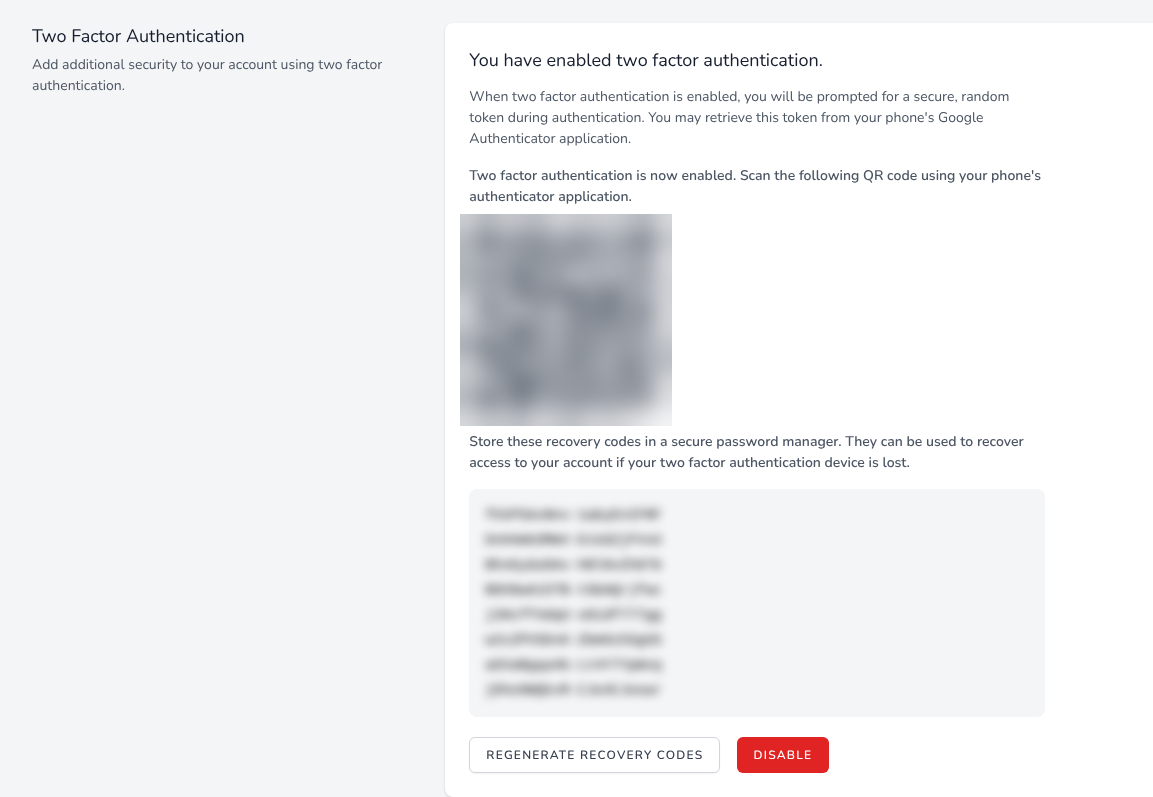
- In the Two Factor Authentication section, click Enable. If asked, confirm your password.
- Scan the QR code with your authenticator app.
- Copy the recovery codes shown below the QR code and keep them somewhere safe, such as a password manager.
Two-factor authentication is active as soon as you click Enable, so finish scanning the QR code and saving your recovery codes before you leave the page.
When you next log in, enter the code from your app in the Code field. If you don't have your phone, click Use a recovery code and enter one of your recovery codes instead. Each recovery code works once.
In the same section you can:
- Show Recovery Codes to see your current codes.
- Regenerate Recovery Codes to replace them with new ones. The old codes stop working.
- Disable to turn two-factor authentication off.
Feed Control may ask you to confirm your password before any of these.
Note: If you log in with Sign in with Google, Feed Control doesn't ask for a two-factor code. Your Google account's own sign-in security applies instead.
Browser sessions
The Browser Sessions section lists the browsers and devices where you're logged in, with their IP address and when they were last active. The one you're using is marked This device.
If you've logged in somewhere you no longer use, or think someone else has access, click Logout Other Browser Sessions and enter your password. This logs you out everywhere except the current browser. If you think your account has been compromised, change your password too.
Delete your account
Deleting your account permanently removes it and all of its data, including your feeds and their items. This can't be undone.
Before you start:
- Cancel any active subscription. While you have one, the Delete Account button is disabled and a Cancel Subscription plan button appears next to it. See Billing and plan changes.
- Export anything you want to keep. For example, export your feed list from Feeds with Export > Export as CSV or Export as OPML.
To delete your account:
- In the Delete Account section, click Delete Account.
- Confirm the deletion:
- If you've ever used Sign in with Google for this account, click Send Verification Code, then enter the 6-digit code from the email. The code is valid for 15 minutes. Click Resend Code if you need a new one.
- Otherwise, enter your password.
- Click Delete Account.
Dark mode
To switch the app between light and dark, click the moon or sun icon in the top bar. On a phone, open the sidebar and choose Dark mode or Light mode at the bottom.
Your choice is saved in your browser, so you'll need to set it again on another browser or device. Dark mode applies to the main app only; the account, pricing and invoice pages always use the light layout.
Notification settings
Notification settings aren't on the account settings page:
- Email alerts for new items are set per feed, on the feed's Alerts/Integrations tab. See Email alerts.
- Daily failure emails are switched on or off on the Event Logs screen. See Failure notifications.
Can't find what you need? Contact support.