Integrations
Slack
The Slack integration posts a message to a Slack channel whenever one of your feeds or bundles gets a new item. This page covers connecting your workspace, choosing a channel, the message layouts, what gets posted, and fixing common problems.
Plus and Business plans: Slack isn't included in the Basic plan. See Plans and limits.
Connecting your Slack workspace
- Select Integrations in the menu.
- On the Slack card, click Add.
- Slack opens and asks you to allow Feed Control access to your workspace. Check that the right workspace is selected, review the permissions, and allow access.
- You're brought back to the Integrations screen, where the workspace now appears under Your Integrations, named after the workspace.
Feed Control asks Slack for permission to post messages and to see basic information about your channels and conversations. It posts as its own app, not as you.
You can add each Slack workspace once. Adding a workspace you've already connected leaves the existing integration as it is. To post to more than one workspace, add each of them.
The integration's page shows the Slack Workspace it's linked to, along with its recent deliveries.
Choosing a channel
Connect the workspace to a feed or bundle to choose where messages go:
- Open the feed and go to its Alerts/Integrations tab, or open the bundle and go to its Integrations tab.
- Click Add Integration (or Add integration) and choose your Slack workspace.
- In the Connect Slack channel dialog, enter the Slack Channel Name. You can include the
#or leave it out. If you leave the field empty, Feed Control uses#General. - Choose a Message layout and check the Preview.
- Click Save.
- In Slack, add the Feed Control app to the channel. Until the app is in the channel, Slack rejects its messages.
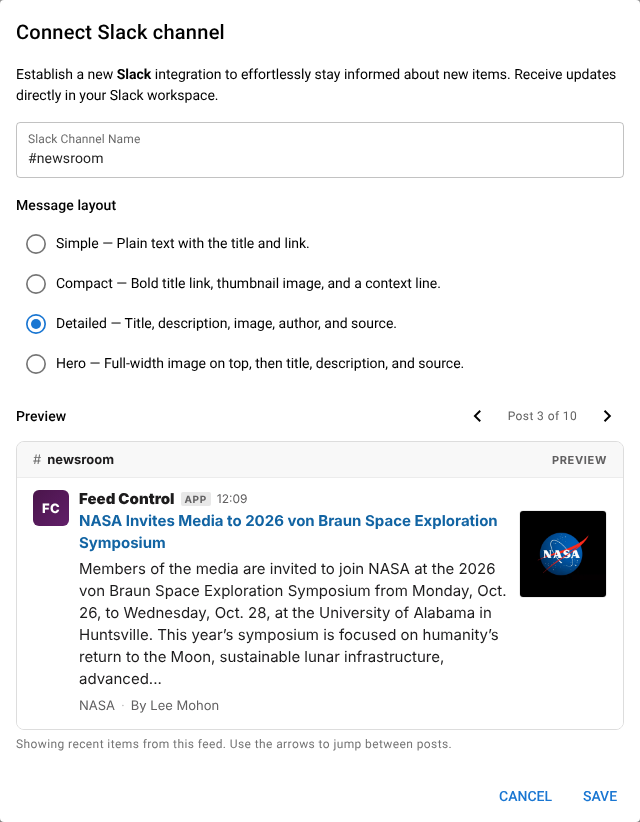
Feed Control posts to the channel by the name you entered. If you rename the channel in Slack, connect it again under its new name.
You can't change the channel of an existing connection. To post to a different channel, delete the connection and add it again. Each feed or bundle can post to one channel per workspace.
Message layouts
Each connection has its own layout. New connections use Simple unless you choose another.
| Layout | What the message shows |
|---|---|
| Simple | Plain text: the item's title, with its link on the next line. Slack may add its own preview of the link. |
| Compact | The title in bold, linked to the item, with the item's image as a thumbnail, and a line underneath with the feed's title and "By" the author. |
| Detailed | The linked title in bold and the item's description, with the image as a thumbnail, and a line underneath with the feed's title, "By" the author, and the publication date. |
| Hero | The item's image full width at the top, then the linked title in bold and the description, and a line with the feed's title, "By" the author, and the publication date. |
A few details apply to all the richer layouts:
- Descriptions are plain text, with any HTML removed, and are cut to 500 characters.
- Anything the item doesn't have, such as an image or an author, is left out. An item without a title is shown as "Untitled".
- Slack's own link preview is turned off, because the message already contains the title, image and description.
- If Slack can't use an item's image, Feed Control posts the message again without the image.
- For a bundle, the feed title is the title of the feed the item came from.
Previewing a layout
The Preview in the dialog shows how a post will look in your channel. It uses recent items from the feed or bundle; when there's more than one, use the arrows to move between them ("Post 1 of 20", and so on). If there are no items yet, the preview uses a sample item.
The preview is a close approximation of Slack's own display. For example, the publication date in the Detailed and Hero layouts only appears in Slack.
Changing the layout
- Open the feed's Alerts/Integrations tab or the bundle's Integrations tab.
- Tick the Slack connection (just one).
- Click Actions, then Edit Slack message layout.
- Choose a layout, check the preview, and click Save.
The new layout applies to new messages, and to any failed messages that are retried.
What gets posted, and when
Feed Control posts one message for each new item, on each connection, as soon as it has finished processing the item. Items aren't batched or combined into a digest: if a feed update brings in ten new items, the channel gets ten messages.
Nothing is posted for items your filters remove, for feeds in curation mode, for items that were already in the feed when you connected it, or while the integration or connection is switched off. See Integrations overview.
If Slack is limiting how many messages it accepts, or a message fails for another reason, Feed Control retries it automatically, up to three attempts in all.
Disconnecting
- Stop one channel: on the feed or bundle, tick the Slack connection, click Actions, then Delete selected. Or, on the integration's page, tick the feed or bundle, click Actions, then Disconnect selected.
- Pause without removing anything: choose Actions > Disable selected for a connection, or untick Active on the integration's page to pause every channel in that workspace. See Pausing deliveries.
- Remove the workspace: on the Integrations screen, tick the integration, click Actions, then Delete selected. This removes all of its connections.
Deleting the integration doesn't remove the Feed Control app from your workspace. To remove it, do so in Slack.
Common problems
Failed posts appear in the integration's Recent Deliveries, labelled with the kind of problem, and in the event log, with Slack's error code and a hint about what to do.
| Error | What it means | What to do |
|---|---|---|
App not in channel (not_in_channel) |
The Feed Control app isn't in the channel. | Add the app to the channel in Slack, or connect a different channel. |
Not found (channel_not_found or is_archived) |
Slack can't find a channel with that name, or it's archived. | Check the channel exists and hasn't been renamed. Delete the connection and add it again with the right name. |
Not authorised (for example invalid_auth, token_revoked or missing_scope) |
Slack no longer accepts Feed Control's access to the workspace, for example because the app was removed. | Delete the integration on the Integrations screen, add Slack again, then reconnect your feeds and bundles. |
Rate limited (ratelimited) |
Slack is limiting how many messages it accepts. | Nothing: Feed Control retries automatically. |
| Missing setting (No Slack channel configured) | The connection has no channel, which happens if it was made with Connect Feed or Connect Bundle on the integration's page. | Delete the connection and add it from the feed or bundle, where you can enter a channel. |
If saving a new connection shows "Failed to connect Slack integration. Please try again.", check that your plan has room for another connection. See Plan limits.
Can't find what you need? Contact support.