Getting started
Quick start
This guide takes you from a new account to your first feed items. It covers signing up, the welcome question, adding a feed from the dashboard and finding the items Feed Control collects.
1. Create your account
- On the Feed Control home page, click Get started in the top bar.
- Fill in Name, Email, Password and Confirm Password, then click Register. Your password must be at least 8 characters long.
- Check your inbox and click the verification link. If the email doesn't arrive, click Resend Verification Email. You can't use the app until your email address is verified.
To use your Google account instead of a password, click Sign in with Google on the registration form. Accounts created this way are verified automatically, so you can skip step 3.
Every new account starts with a 7-day trial of the Plus plan, limited to 5 feeds. You don't need a payment card for the trial. See Plans and limits for what the trial includes.
Tip: You can also set up a feed before you have an account. Click the large Get Started button on the home page, choose a feed type and follow the add-feed steps described below. At the last step, click Register and Save. Once you've registered and verified your email in the same browser, Feed Control takes you back to the Save Feed step so you can save the feed.
2. Answer the welcome question
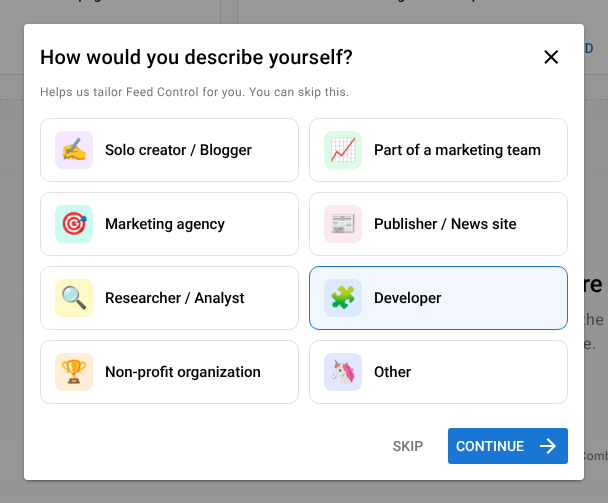
The first time you open the app, Feed Control asks How would you describe yourself? Pick the option that fits best, such as Developer or Publisher / News site, and click Continue. If you pick Other, add a few words in Tell us a bit more.
The question is optional. Click Skip or close the dialog to go straight to the dashboard. Either way, you won't be asked again.
3. Add your first feed
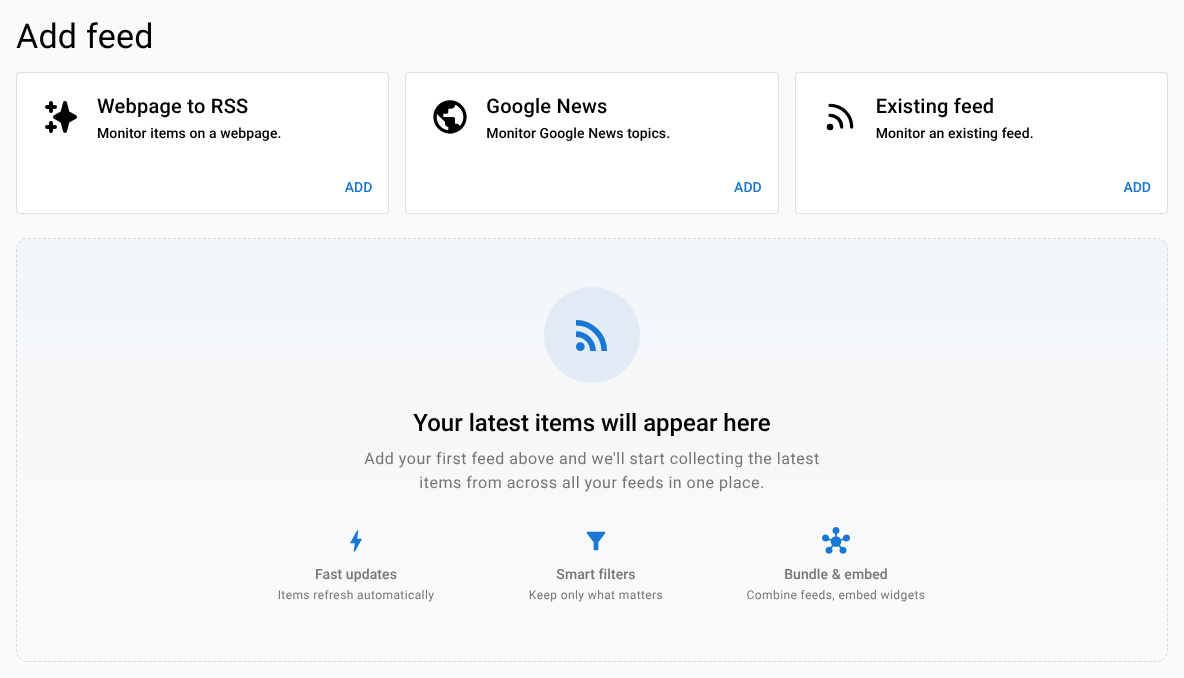
The Dashboard opens with an Add feed section offering three kinds of feed:
| Card | Use it to |
|---|---|
| Webpage to RSS | Turn a web page that has no feed into one, using our Feed Creator tool. |
| Google News | Follow a Google News topic or search. Needs a Plus or Business plan (the trial includes it). |
| Existing feed | Monitor a feed you already have the URL for. |
To add an existing feed:
- Click Add on the Existing feed card.
- Paste the address into Feed URL and click Next. You can also pick one of the suggested feeds below the box.
- On Filter and Preview, check the preview of the latest items. If the items only show a summary, tick Fetch full text to pull in the whole article. You can also add words or phrases to keep or remove items. Click Next.
- On Alerts and Integrations, choose whether you want Email notifications for this feed. Leave it on Off if you're not sure. Click Next.
- On Save Feed, click Save.
- When you see Saved!, click Manage feed to open the feed in the app.
The add-feed steps open in a simpler page layout. Use Manage feeds at the top of the page if you want to go back to the app without saving.
For the other feed types and every option in these steps, see Adding a feed.
4. See your items
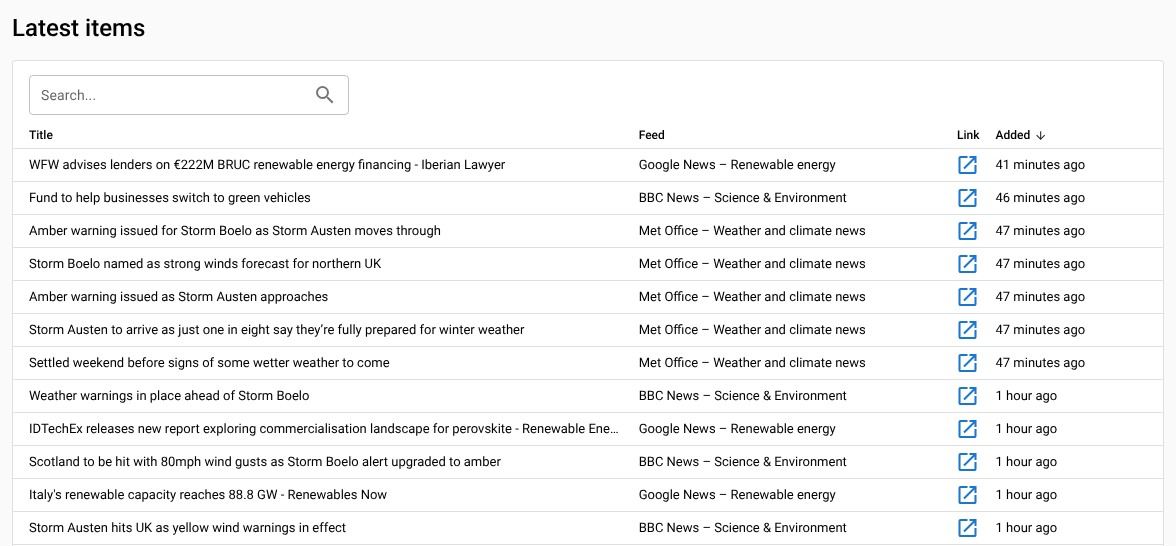
Feed Control fetches a new feed as soon as you save it, then checks it again on a schedule. You can find the items in two places:
- Dashboard: the Latest items table shows the newest items from all your feeds. Click a row to open the item.
- Feeds: open the feed and go to the Feed Items tab to see everything collected for that feed.
If you turned on full text, each item's article is fetched in the background, so the full content can take a little longer to appear than the title.
5. Next steps
Open your feed and work through its tabs:
- Source: rename the feed and choose how often it's checked. See Source settings.
- Full text: fine-tune article extraction. See Full-text extraction.
- Alerts/Integrations: email alerts and Slack, Discord or webhook connections. See Email alerts and Integrations overview.
- Filters: keep only the items you care about. See Filters and curation.
- Generate RSS/JSON: get a feed URL for your feed reader or another service. See Generating RSS or JSON.
When you have a few feeds, try combining them in a bundle or showing them on your site with a widget.
Before your trial ends: about two days before the end of the trial, Feed Control emails you a reminder. To keep your feeds updating, choose a plan from Manage Account. See Billing and plan changes.
Can't find what you need? Contact support.