Feeds
Email alerts
Feed Control can email you when a feed has new items: either one email for each new item, or a daily, weekly or monthly summary. This page explains the options, when emails are sent, what they contain and how to turn them off.
Email alerts are set on each feed's Alerts/Integrations tab. The same tab is where you connect Slack, Discord and webhook integrations: see Integrations overview.
Alert options
| Option | What you get |
|---|---|
| Off | No emails. This is the default. |
| For each new item | One email per new item, sent soon after Feed Control finds it. |
| Daily | One email a day listing the feed's new items. |
| Weekly | One email a week listing the feed's new items. |
| Monthly | One email a month listing the feed's new items. |
When you add a feed, the same choices are labelled Off, Whenever a new item is detected, Daily summary, Weekly summary and Monthly summary.
Emails for each new item suit feeds that don't update often. For busy feeds, choose a summary so your inbox doesn't fill up.
Turning on email alerts
When you add a feed, choose an option under Email notifications on the Alerts and Integrations step. See Adding a feed.
For a feed you've already added:
- Open the feed from Feeds and go to the Alerts/Integrations tab.
- Click Edit.
- In Email alerts, choose an option.
- Click Update Feed.
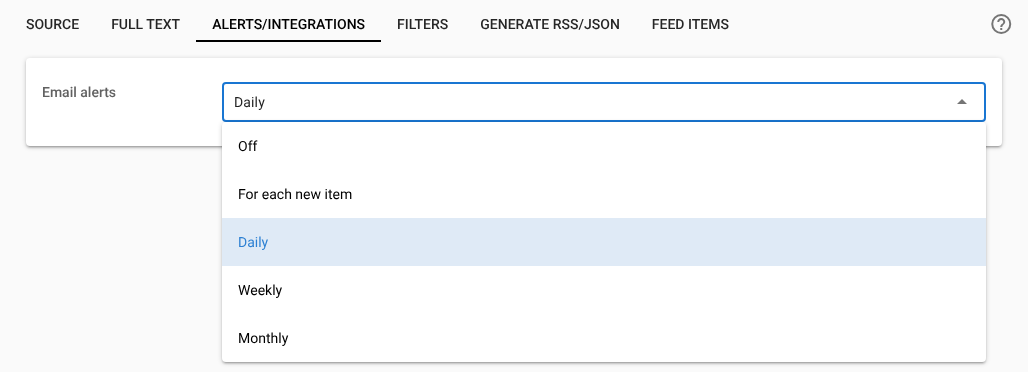
Whenever you change this setting, Feed Control starts counting from the feed's newest item. Items already in the feed aren't emailed, only items found afterwards.
When emails are sent
For each new item: after each scheduled check that finds new items, Feed Control sends one email per item. How often that happens depends on the feed's Checked every setting.
Summaries: Feed Control checks the feed for new items and then sends the summary:
- Daily: every day, shortly after midnight UTC
- Weekly: every Sunday, shortly after midnight UTC
- Monthly: on the first day of each month, shortly after midnight UTC.
A summary lists every new item since the previous one. If there are no new items, no email is sent.
Which items are included:
- Only items that pass your filters. Items removed by your filters, or hidden by hand on the Feed Items tab, aren't emailed. See Filters and curation.
- Only fully processed items. For feeds with full text on, an item is emailed after its article has been extracted. Items whose extraction failed aren't emailed. See Full-text extraction.
- Only active feeds. Inactive feeds don't send alerts. See Source settings.
Items picked up with Actions > Fetch Feed Items don't trigger an email straight away. They're included the next time Feed Control sends an alert for that feed.
Daily limit
Each account can receive up to 50 new-item emails a day, across all its feeds. The count resets every day at midnight UTC. Items that arrive after the limit is reached may never be emailed, so switch busy feeds to a summary.
Summary emails don't count towards this limit.
What the emails look like
All alerts come from RSS Feed via Feed Control ([email protected]). To keep them out of your spam folder, add that address to your contacts.
New item emails
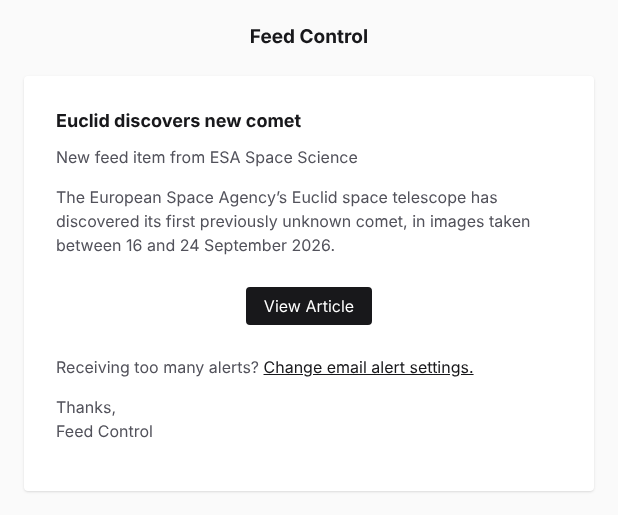
- Subject: the item's title.
- Body: the item's title, New feed item from followed by the feed's name, and up to 400 characters of the item's description as plain text.
- View Article opens the item's link. If the item has no link, it opens the item in Feed Control.
- Change email alert settings. takes you to the feed's Alerts/Integrations tab.
Emails don't include the full article, even when full text is on.
Summary emails
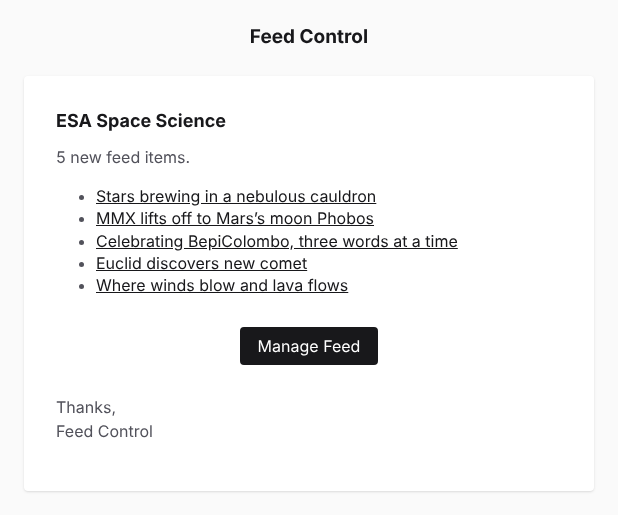
- Subject: Daily summary:, Weekly summary: or Monthly summary: followed by the feed's name.
- Body: the feed's title, the number of new items, and a list of item titles, oldest first. Each title links to the item. Long titles are shortened to 160 characters.
- Manage Feed opens the feed in Feed Control.
Where emails are sent
Alerts go to your account's email address. To change it, see Profile, password and two-factor.
Turning email alerts off
- Open the feed's Alerts/Integrations tab. From a new item email, Change email alert settings. takes you straight there.
- Click Edit.
- In Email alerts, choose Off.
- Click Update Feed.
Making a feed inactive also stops its alerts. See Source settings.
Other notifications
- To get a daily email when deliveries, extractions or other events fail, see Failure notifications.
- To send new items to Slack, Discord or your own application instead of email, see Integrations overview.
Can't find what you need? Contact support.