Bundles and widgets
Widgets
A widget shows the latest items from one of your feeds on your own website. You create it in Feed Control, choose how it looks, and paste a short HTML snippet into your page. This page covers creating a widget, every display option, the embed code, and how the widget stays up to date.
How widgets work
Each widget shows one feed. Feed Control publishes that feed's latest items (up to 20) as a small data file on its content delivery network and updates the file as new items arrive. The embed code loads a script that reads the data file in your visitor's browser and draws the widget on your page.
Widgets show the items that are visible in your feed: items your filters remove and items you've hidden manually aren't included. See Filters and curation.
The display options (layout, colours, what to show) are part of the embed code rather than settings saved in Feed Control: when you open the widget again, they're back at their defaults. If you change them, copy the code again and replace it on your site.
Creating a widget
You need at least one feed before you can create a widget.
- Select Widgets in the menu.
- Click Create Widget (or Add widget if you already have widgets).
- Under Select Feed, choose the feed to show. Only active feeds are listed. The widget is named after the feed; you can rename it later.
- Check the preview, which uses the default display options.
- Click Save and customize.
The widget's page opens, showing the Widget Code on one side and a Preview on the other. The Widget ID under the widget's name is the ID used in the embed code.
Display options
Set these under Display Options in the Widget Code panel. The Preview next to it updates as you change them, using your feed's most recent items.
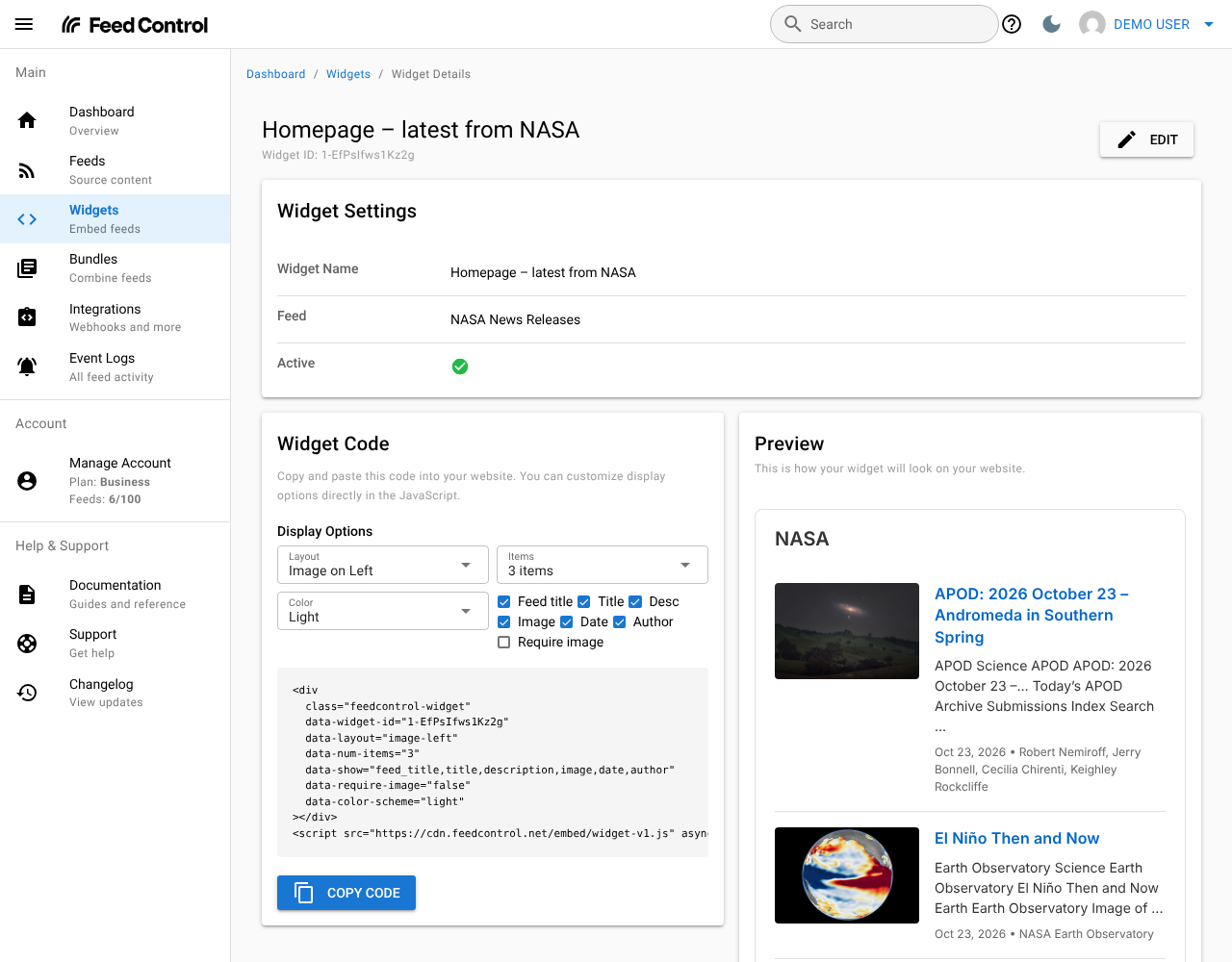
| Option | Choices | Default | What it does |
|---|---|---|---|
| Layout | Image on Left, Image on Right | Image on Left | Which side of each item the image appears on. |
| Items | 1 to 20 items | 3 items | How many items the widget shows. |
| Color | Light, Dark | Light | The colour scheme: dark text on a white background, or light text on a near-black background. |
| Feed title | On or off | On | Shows the feed's title above the items. |
| Title | On or off | On | Shows each item's title, linked to the article. Links open in a new tab. |
| Desc | On or off | On | Shows the item's description, cut to its first 150 characters. |
| Image | On or off | On | Shows the item's image, cropped to 150 × 100 pixels. Items without an image are shown without one. |
| Date | On or off | On | Shows the item's publication date, in the format "Oct 23, 2026". |
| Author | On or off | On | Shows the item's author after the date. |
| Require image | On or off | Off | Leaves out items that have no image. The widget may then show fewer items than you chose under Items. |
Note: The author currently appears in the preview but not in the widget on your site.
Copying the embed code
When you're happy with the preview, click Copy Code. Feed Control copies the snippet to your clipboard and confirms with "Widget code copied to clipboard!".
The snippet looks like this, with your own widget ID and options:
<div
  class="feedcontrol-widget"
  data-widget-id="1234-AbCdEfGhIjKlM"
  data-layout="image-left"
  data-num-items="3"
  data-show="feed_title,title,description,image,date,author"
  data-require-image="false"
  data-color-scheme="light"
></div>
<script src="https://cdn.feedcontrol.net/embed/widget-v1.js" async></script>
The div marks where the widget appears, and its attributes hold your display options. The script line loads the widget script. Always copy the snippet from your widget's page rather than typing it, so the widget ID and script address are right.
You can also edit the attributes directly in your page's HTML:
| Attribute | Values | If left out |
|---|---|---|
data-widget-id |
Your widget ID, as shown on the widget's page. Required. | The widget doesn't load. |
data-layout |
image-left or image-right |
image-left |
data-num-items |
A number from 1 to 20 | 3 |
data-show |
A comma-separated list of any of feed_title, title, description, image, date, author |
title,description,image,date,author |
data-require-image |
true or false |
false |
data-color-scheme |
light or dark |
light |
Adding the widget to your site
Paste the snippet into your page's HTML where you want the widget to appear. In most site builders and content management systems, use a block or field that accepts raw HTML; the page must allow JavaScript to run.
- Width. The widget fills the width of the element you put it in, so place it in a container of the width you want.
- Several widgets on one page. Give each widget its own
div. The script draws every widget on the page, so you only need onescriptline, placed after the last widget. - Content Security Policy. If your site sets a Content Security Policy, allow the widget script and its data file from the host in the
scriptline, and allow the widget's images (see below). If something is still blocked, your browser's developer console names the host to add. - If the widget can't load, it shows "Failed to load feed" in its place.
How the widget looks
The widget draws its own styling: a rounded border, your system's standard font, and a line between items, in the light or dark colour scheme you chose. Images are loaded through an image resizing service, which scales them to 600 pixels wide before display.
The styles are applied inline. To adjust them from your own stylesheet, target the feedcontrol-widget and feedcontrol-item classes and use !important so your rules take precedence.
How the widget updates
Feed Control regenerates the widget's data file each time its feed gets new items, and whenever you save the widget. Visitors see the new items the next time they load your page; a page that's already open doesn't refresh itself.
If you change the widget's feed (see below), the code already on your site keeps working and shows the new feed's items. If you change display options, copy the code again and replace it on your site.
Editing, pausing and deleting
To change a widget, open it from the Widgets list and click Edit. You can change the Widget Name, choose a different feed under Select Feed, and tick or untick Active. Click Save to keep your changes or Cancel to discard them. The Widget Code panel is unavailable while you're editing.
When a widget isn't Active, Feed Control stops updating its data, and the widget on your site keeps showing the items it already had. Pausing the widget's feed has the same effect.
To delete widgets, tick them in the Widgets list, click Actions, then Delete selected, and confirm with Delete. Deleting a feed also deletes its widgets.
Note: Deleting a widget in Feed Control doesn't take it off your site; it just stops updating. Remove the snippet from your page as well.
Plan limits
| Plan | Widgets |
|---|---|
| Basic | 5 |
| Plus | 20 |
| Business | 50 |
Once you reach your plan's limit, Feed Control won't save new widgets. See Plans and limits.
Can't find what you need? Contact support.