Webhooks
Setting up a webhook
This page shows how to create a webhook integration, connect feeds and bundles to it, and manage it afterwards. If you're new to webhooks in Feed Control, read Webhooks intro first.
Plan limits: Each feed or bundle you connect to an integration is one connection, and only connections that are switched on count towards your plan. The Basic plan includes one webhook connection; Plus and Business include more, shared with Slack and Discord. When you've used your allowance, the Add button on the Webhook card is disabled. See Plans and limits.
Before you start
You need an endpoint that:
- is reachable from the public internet over
http://orhttps://(usehttps://) - accepts
POSTrequests with a JSON body - answers with a
2xxstatus code within 30 seconds
If you just want to see what Feed Control sends, you can use a request inspector instead of your own endpoint. See Testing and delivery history.
Create a webhook integration
- Click Integrations in the left-hand menu.
- Under Add Integration, find the Webhook card and click Add.
- In the Add Webhook dialog, enter your endpoint's URL in Webhook URL.
- Click Add.
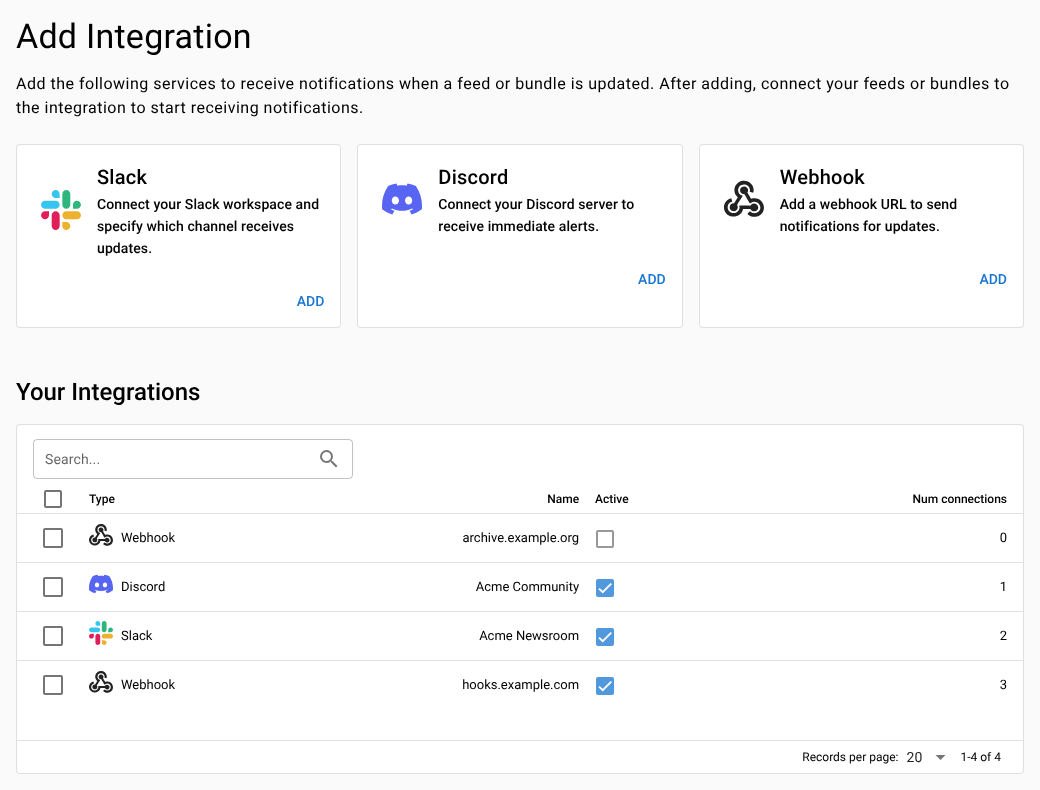
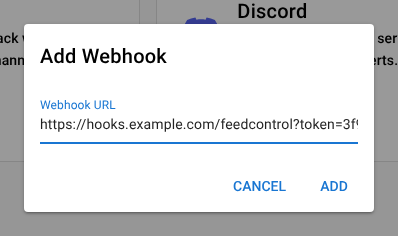
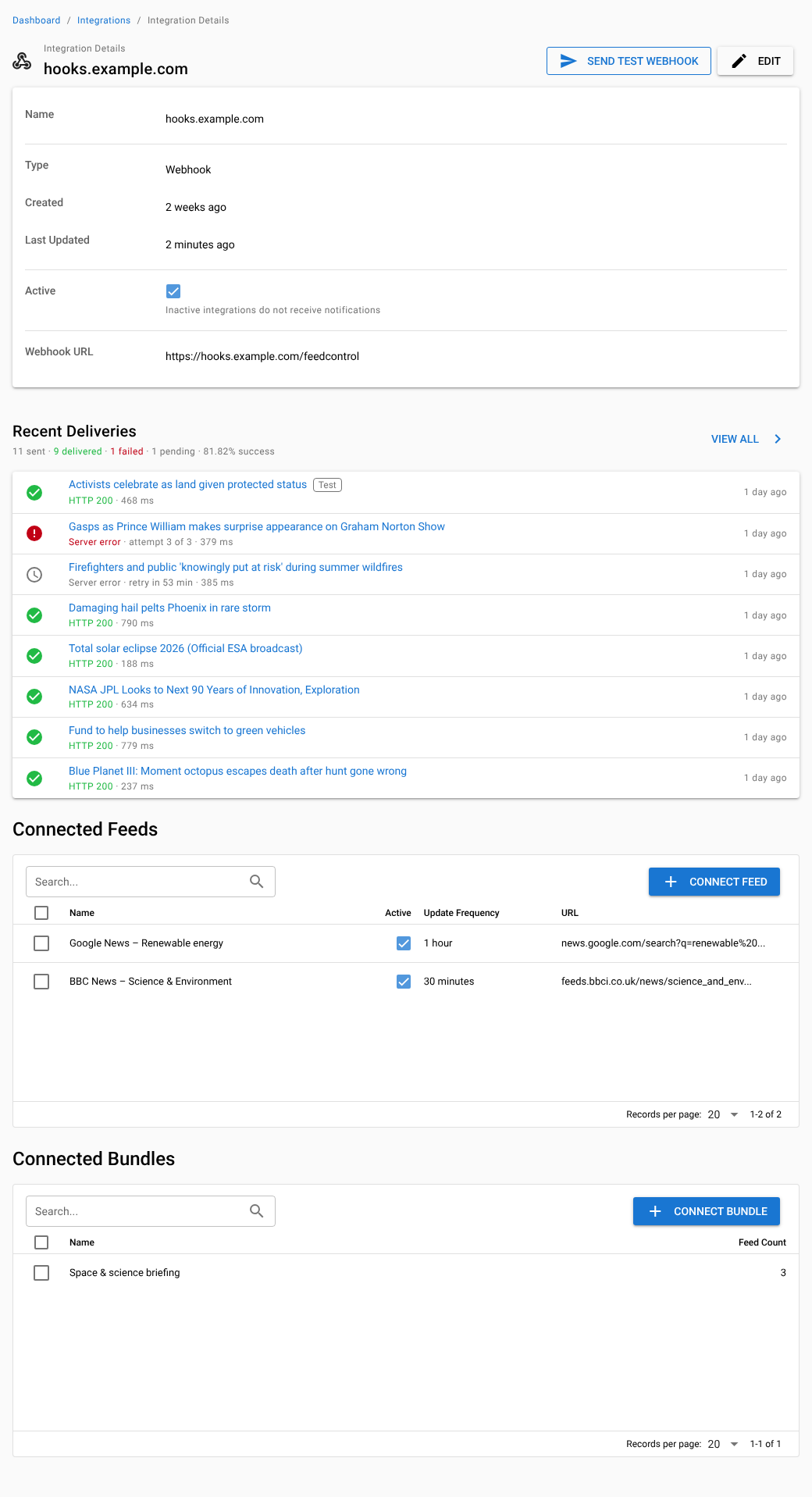
The new integration appears under Your Integrations, named after the host name in the URL (for example, hooks.example.com). Click it to open its page, where you can connect feeds, send a test webhook and see recent deliveries.
Webhook URL rules
- It must be a valid URL. When you add a webhook and leave out
http://orhttps://, Feed Control addshttps://for you. When you edit the URL later, include it yourself. - Use HTTPS. Plain
http://URLs are accepted, but the item and any token in the URL then travel unencrypted. HTTPS endpoints need a valid certificate. - It must point to the public internet. Feed Control won't send to private or internal network addresses, such as
localhost,127.0.0.1,10.x.x.xor192.168.x.x, including host names that resolve to them. This is checked each time a webhook is sent, not when you save the URL, so use Send test webhook to check a new URL. A blocked URL fails with Blocked address and isn't retried. - Redirects aren't followed. If your server answers with a redirect, the delivery fails with Redirected. Use the final URL.
- Query strings are kept. Feed Control posts to the URL exactly as you entered it, so you can include a secret token, for example
https://hooks.example.com/feedcontrol?token=…. See Protect your endpoint.
Connect feeds and bundles
An integration doesn't send anything until you connect at least one feed or bundle to it. You can connect from the integration's page, or from the feed or bundle.
From the integration page
- Open the integration from Integrations > Your Integrations.
- Under Connected Feeds, click Connect Feed.
- Tick the feeds you want (use Search Feeds to find them), then click Connect.
- To connect bundles, click Connect Bundle under Connected Bundles, tick the bundles and click Connect.
From a feed or bundle
- Open the feed and go to the Alerts/Integrations tab. For a bundle, open the bundle and go to the Integrations tab.
- Click Add Integration (or Add integration if the feed or bundle already has connections).
- Under Select an existing integration to connect, click your webhook integration. It's connected straight away.
If the integration doesn't exist yet, click Create New Integration to go to the Integrations screen.
When you connect a bundle, you receive new items from all the feeds in it. Don't connect a feed and a bundle containing that feed to the same webhook unless you want those items twice.
Switch deliveries on and off
You can pause a whole integration, or just one feed's or bundle's connection to it. Items found while deliveries are off aren't sent later.
The whole integration
- Open the integration and click Edit.
- Untick Active to stop sending ("Inactive integrations do not receive notifications"), or tick it to start again.
- Click Save.
While the integration is inactive, nothing is sent for any of its feeds or bundles, and deliveries waiting to be retried aren't retried: they're marked as failed with Switched off. Send test webhook still works, so you can check your endpoint before switching back on.
A single feed or bundle
- Open the feed's Alerts/Integrations tab, or the bundle's Integrations tab.
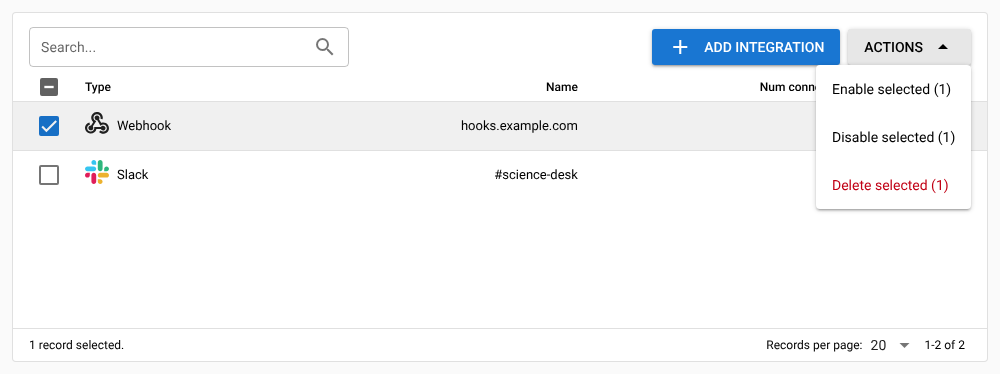
- Tick the connection in the list. The Active column shows whether it's on.
- Click Actions and choose Disable selected or Enable selected.
A disabled connection stays in place but doesn't send, and doesn't count towards your plan's limit. If enabling a connection would take you over your plan's limit, it stays disabled and Feed Control tells you how many connections it couldn't enable.
Change the name or URL
- Open the integration and click Edit.
- Change Name or Webhook URL.
- Click Save. To discard your changes, click Cancel.
New deliveries go to the new URL straight away. Deliveries created before the change keep the URL they were created with: automatic retries, and retries you start from Event Logs, still go to the old URL. If you've changed the URL to fix a failing endpoint, use Send test webhook to check the new one rather than retrying old deliveries.
Protect your endpoint
Feed Control doesn't sign webhook requests, so there's no signing secret to copy or rotate. To make sure a request really comes from your Feed Control account:
- Generate a long random token, for example with
openssl rand -hex 32. - Add it to your webhook URL, for example
https://hooks.example.com/feedcontrol?token=<your token>. - In your handler, compare the token in the request with the one you stored, using a constant-time comparison, and reject requests that don't match.
The examples for PHP and Cloudflare Workers do exactly this. For more on what you can check, see Authenticating requests.
To change the token:
- Make your handler accept both the old and the new token.
- Edit the integration's Webhook URL to use the new token and click Save.
- Wait until no deliveries to the old URL are waiting to be retried. The last automatic retry comes about three and a half hours after a delivery's first attempt.
- Remove the old token from your handler. From then on, your endpoint will refuse any old delivery you retry from Event Logs, because it still goes to the old URL.
Disconnect or delete
Disconnect a feed or bundle
On the integration's page, tick the feeds under Connected Feeds (or the bundles under Connected Bundles), click Actions > Disconnect selected, then confirm.
You can also do this from the feed's Alerts/Integrations tab or the bundle's Integrations tab: tick the connection, then click Actions > Delete selected. This removes the connection only, not the integration.
Removing a connection also removes its delivery history from Event Logs.
Delete the integration
- Go to Integrations.
- Under Your Integrations, tick the integration.
- Click Actions > Delete selected, then confirm.
Deleting an integration removes all its connections and its delivery history. It can't be undone. If you only want to stop deliveries for a while, untick Active instead.
Can't find what you need? Contact support.