Bundles and widgets
Bundles
A bundle combines two or more of your feeds into one stream. You can publish a bundle as a single RSS or JSON feed, and connect it to Slack, Discord or webhook integrations so that new items from all of its feeds arrive in one place. This page covers creating a bundle, choosing its feeds, and every output setting.
How bundles work
A bundle doesn't fetch anything itself. It draws on the items your feeds have already collected, so each feed keeps its own source, full-text and filter settings, and the bundle uses the result:
- Items your filters remove, and items you've hidden manually, don't appear in the bundle.
- For a feed in curation mode, only the items you've Picked are included. See Filters and curation.
- Items appear once Feed Control has finished processing them (for example, after full-text extraction).
A feed can belong to more than one bundle. Detaching a feed from a bundle, or deleting a bundle, doesn't change the feed.
Each bundle has a Name, which is only shown to you in Feed Control, and a Feed Title, which appears in the RSS or JSON output.
Creating a bundle
You need at least two feeds before you can create a bundle.
- Select Bundles in the menu.
- Click Create Bundle.
- Enter a Bundle Name.
- Under Select Feeds, tick at least two feeds. To narrow the list, type two or more characters into Search Feeds; it matches feed names and URLs.
- Click Create Bundle. Your new bundle opens.
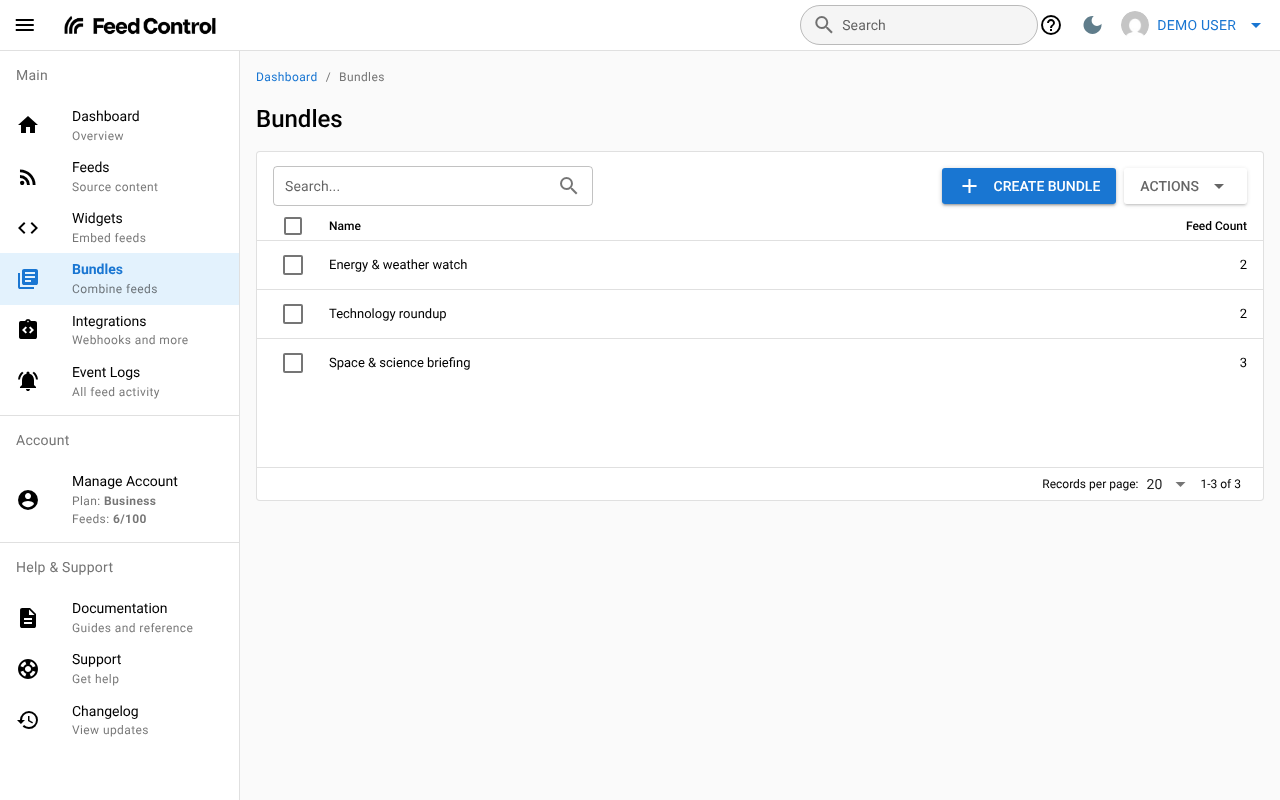
A new bundle doesn't publish anything yet. Its Feed Title starts out as the bundle name. To get an RSS or JSON URL, turn on output as described in Generating RSS or JSON.
The bundle page
Click a bundle in the list to open it. The page has four tabs:
| Tab | What's on it |
|---|---|
| Bundle Details | The bundle's name and when it was created, and the Delete bundle button. |
| Attached Feeds | The feeds in the bundle. Click a feed to open it. |
| Integrations | Slack, Discord and webhook integrations connected to the bundle. |
| Generate RSS/JSON | The bundle's output links and settings. |
To change the name or output settings, click Edit (on the Bundle Details or Generate RSS/JSON tab), make your changes, then click Update Bundle. Cancel discards your changes.
Attaching and detaching feeds
To add feeds to a bundle:
- Open the Attached Feeds tab and click Attach Feed.
- Tick the feeds you want. Feeds already in the bundle aren't listed.
- Click Attach Feed (or Attach Feeds if you've ticked more than one).
To remove feeds:
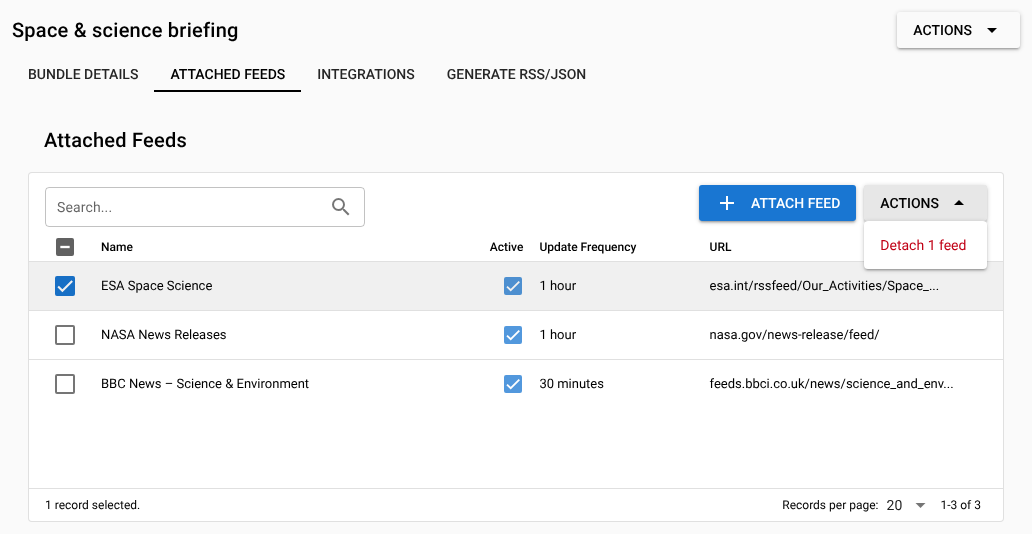
- On the Attached Feeds tab, tick the feeds you want to remove.
- Click Actions, then Detach 1 feed (or Detach 2 feeds, and so on).
- Click Detach to confirm.
If the bundle publishes RSS or JSON, Feed Control regenerates the output straight away when you attach or detach a feed.
Generating RSS or JSON
To publish a bundle:
- Open the Generate RSS/JSON tab and click Edit.
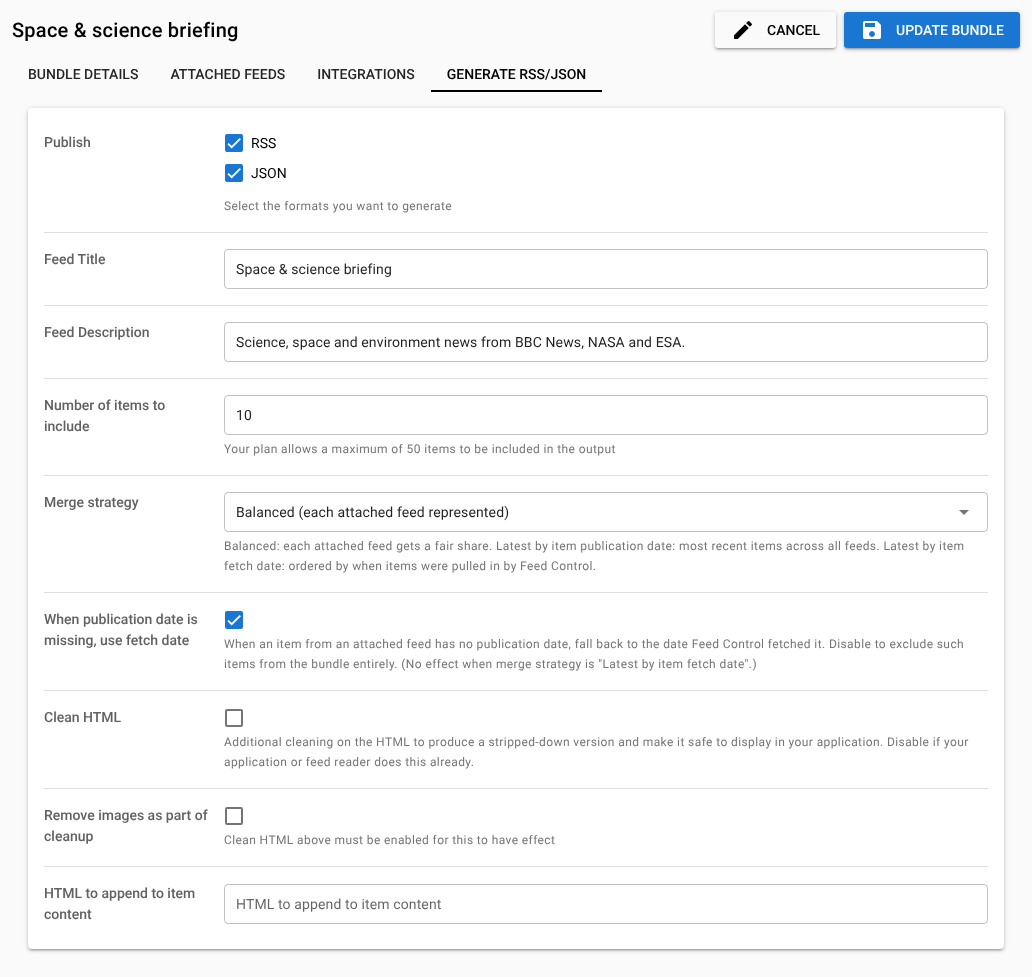
- Under Publish, tick RSS, JSON or both.
- Check the Feed Title and adjust any other settings (see the table below).
- Click Update Bundle.
The Links row then shows an RSS and/or JSON link. Each opens a preview of the output, generated from the bundle's current settings, together with the bundle's public URL and a Copy URL button. Use that URL in your feed reader or application. When you've just made changes, allow a minute for the content at the public URL to update.
For details that bundles share with feeds, such as the output formats and the fields each item contains, see Generating RSS or JSON.
| Setting | What it does |
|---|---|
| Publish | The formats to generate: RSS, JSON or both. |
| Feed Title | The title of the generated feed. Required. |
| Feed Description | An optional description for the generated feed. |
| Number of items to include | How many items the output contains. If you leave it blank, the bundle uses 10. The most your plan allows is shown under the field. |
| Merge strategy | How items from the attached feeds are chosen and ordered. See Merge strategies. |
| When publication date is missing, use fetch date | On by default. See Items without a publication date. |
| Clean HTML | Off by default. Strips each item's HTML down to a basic, safe set of tags, for displaying in your own application. Leave it off if your application or feed reader already does this. |
| Remove images as part of cleanup | Removes images from item content. Only has an effect when Clean HTML is ticked. |
| HTML to append to item content | HTML added to the end of every item's content. {url} is replaced with the item's URL and {final_url} with its final URL after redirects, where Feed Control knows it. The HTML you enter is cleaned, so only basic tags and links are kept. |
Merge strategies
The Merge strategy decides which items make it into the output when the attached feeds have more items between them than Number of items to include.
Latest by item publication date (default). Feed Control pools the eligible items from all attached feeds, sorts them newest first by publication date, and keeps the first items up to your number. A feed that publishes often can fill most, or all, of the bundle.
Balanced (each attached feed represented). Feed Control gives each attached feed an equal share: the number of items divided by the number of feeds, rounded up. It takes up to that many of the newest items from each feed, sorts them all newest first by publication date, and keeps the first items up to your number. For example, with 10 items and 3 feeds, each feed contributes up to 4 items and the newest 10 of those are published. If a feed has fewer items than its share, the other feeds don't make up the difference, so the output can contain fewer items than you asked for.
Latest by item fetch date. Feed Control sorts items by when it fetched them (when the item first appeared in Feed Control), newest first, and ignores publication dates. Useful when a source's publication dates are missing or unreliable.
Items without a publication date
Some feeds don't give every item a publication date. With Latest by item publication date and Balanced:
- When When publication date is missing, use fetch date is ticked, those items are sorted by the date Feed Control fetched them.
- When it's not ticked, those items are left out of the bundle entirely.
The setting has no effect, and is greyed out, when the merge strategy is Latest by item fetch date. It only affects which items are included and their order: an item without a publication date still has no date in the output.
When the output updates
Feed Control regenerates a bundle's RSS and JSON files:
- whenever one of its feeds gets new items
- when you attach or detach a feed
- when you change the Publish formats
- when you choose Actions > Rebuild Bundle at the top of the bundle page
Other changes, such as a new merge strategy, number of items or title, are published the next time one of those happens. To publish them straight away, choose Actions > Rebuild Bundle. The preview behind the RSS and JSON links always reflects your current settings.
If you stop publishing a format, Feed Control stops updating that file, but the file isn't deleted: anyone using the URL keeps seeing the last version.
Connecting integrations
You can send a bundle's new items to Slack, Discord or a webhook:
- Open the bundle's Integrations tab and click Add Integration (or Add integration if the bundle already has some).
- Pick one of your integrations. If you haven't set one up yet, click Create New Integration.
- For Slack, choose a channel and message layout. For Discord, choose a channel. A webhook is connected straight away.
What a bundle connection sends:
- Each new item from any attached feed, as it arrives. The merge strategy, number of items and other output settings don't apply, and the bundle doesn't need to publish RSS or JSON.
- Items your feed filters remove aren't sent, and feeds in curation mode don't send items to integrations.
- If a feed is connected to an integration directly and also through a bundle, each new item is sent once for each connection.
To pause, remove or change a connection, tick it in the list and use Actions. See Integrations overview, Slack, Discord and Setting up a webhook.
Deleting a bundle
- On the bundle page, open Bundle Details, click Delete bundle, then Delete.
- Or on the Bundles screen, tick one or more bundles, click Actions, then Delete 1 bundle (or Delete 2 bundles, and so on).
Deleting a bundle also removes its integration connections. Its feeds aren't affected. Files already published at the bundle's RSS or JSON URL aren't removed; they just stop updating.
Plan limits
| Plan | Bundles | Most items per bundle output |
|---|---|---|
| Basic | 3 | 10 |
| Plus | 10 | 20 |
| Business | 30 | 50 |
When you reach your plan's bundle limit, Create Bundle is unavailable and the Bundles screen shows a View Plans link. See Plans and limits.
Can't find what you need? Contact support.