Integrations
Integrations overview
Integrations send new items from your feeds and bundles to other services as they arrive: a Slack channel, a Discord channel or your own application's webhook. This page explains the integration types, how to add one and connect it to feeds and bundles, how to pause deliveries, the plan limits, and where to check what was sent.
Integration types
| Type | What it does | More detail |
|---|---|---|
| Slack | Posts a message for each new item to a channel in your Slack workspace, in a layout you choose. | Slack |
| Discord | Posts a message with each new item's title and link to a text channel in your Discord server. | Discord |
| Webhook | Sends each new item as JSON in an HTTP POST request to a URL you choose. | Webhooks intro |
Integrations and connections
There are two parts to every integration:
- The integration is your account's link to a service: a Slack workspace, a Discord server or a webhook URL. You add it once, on the Integrations screen.
- A connection links that integration to one feed or bundle and, for Slack and Discord, to a channel. One integration can have many connections.
Nothing is sent until an integration has at least one connection. Plan limits count connections, not integrations.
Adding an integration
- Select Integrations in the menu.
- Under Add Integration, click Add on the Slack, Discord or Webhook card.
- For Slack and Discord, you're taken to that service to approve access, then brought back to the Integrations screen. For a webhook, enter the Webhook URL and click Add.
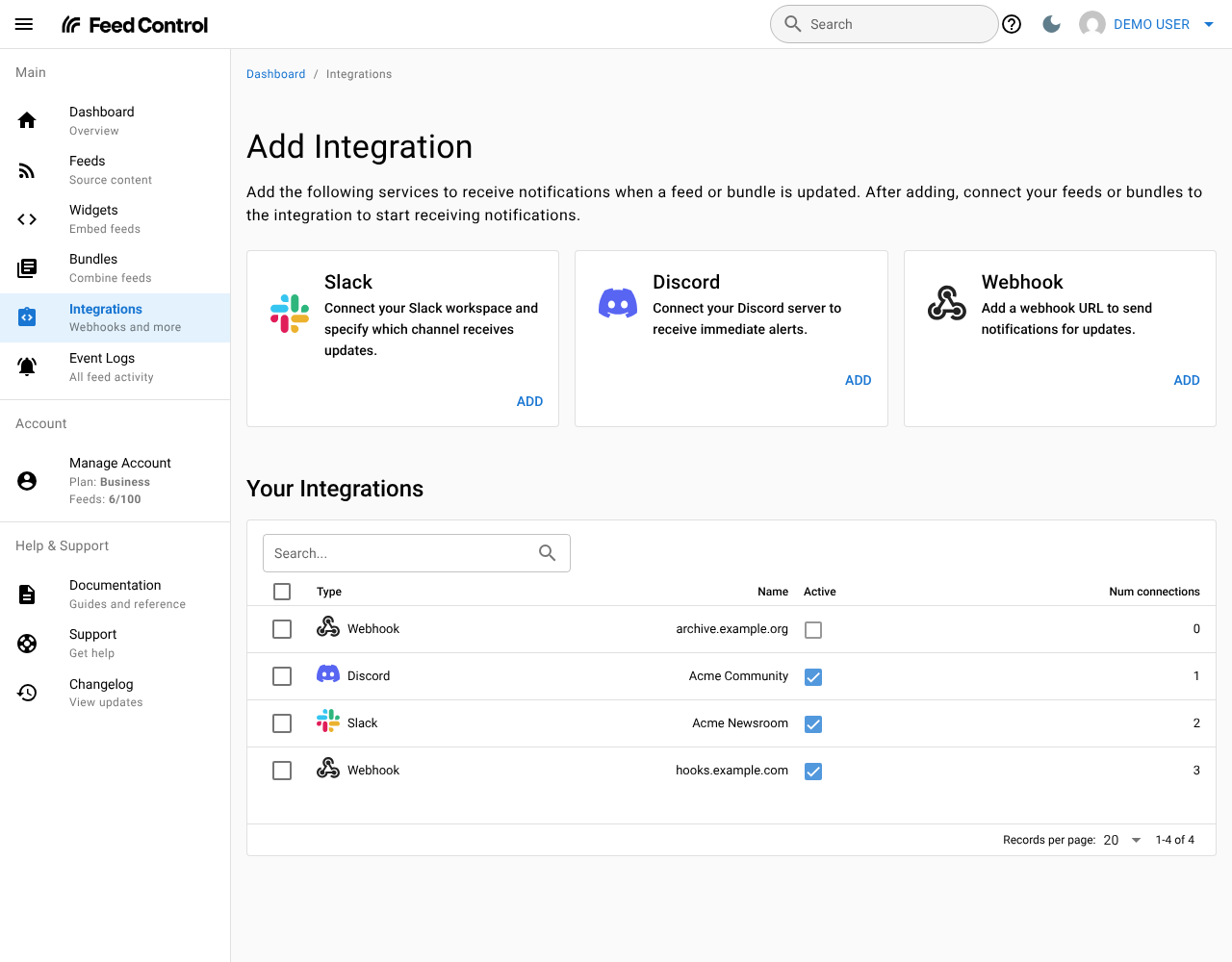
The new integration appears under Your Integrations, which shows each integration's Type, Name, whether it's Active, and its number of connections. Its name is the Slack workspace name, the Discord server name, or the webhook URL's host name; you can rename it on its page.
A card is greyed out when your plan has no room for another connection of that type. See Plan limits.
When you add a new feed, the Alerts and Integrations step of the add-feed wizard lists your existing webhook integrations so you can connect them straight away. Slack and Discord are connected from the feed's page after you've saved it.
Connecting feeds and bundles
From a feed or bundle
This works for every integration type, and it's the only way to connect Slack and Discord, because it's where you choose the channel.
- Open the feed and go to its Alerts/Integrations tab, or open the bundle and go to its Integrations tab.
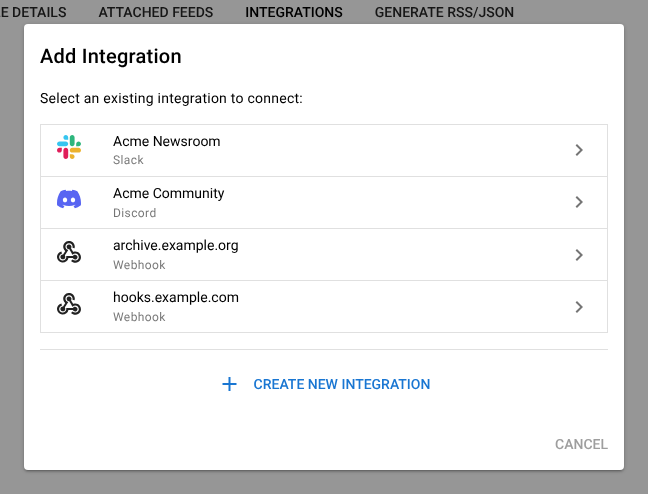
- Click Add Integration (or Add integration if there are already connections).
- Under Select an existing integration to connect, click the integration. To set up a new one, click Create New Integration, which takes you to the Integrations screen.
- For a webhook, the connection is made straight away. For Slack, the Connect Slack channel dialog opens; for Discord, the Connect Discord channel dialog. Choose the channel and click Save.
The list only shows integrations that aren't yet connected to this feed or bundle, so each integration can be connected to a given feed or bundle once. Integrations of a type your plan has no room for are greyed out.
From a webhook integration's page
On a webhook integration's page, click Connect Feed or Connect Bundle, tick the feeds or bundles you want, and click Connect.
For Slack and Discord, connect from the feed or bundle instead: Connect Feed and Connect Bundle don't ask for a channel, so a Slack or Discord connection made there has nowhere to post.
What gets sent
- Each new item is sent once per connection, as soon as Feed Control has finished processing it (for example, after full-text extraction).
- Only items found after you connect are sent. Items already in the feed aren't sent.
- Items your feed filters remove aren't sent.
- Feeds in curation mode don't send items to integrations.
- Paused feeds don't fetch new items, so they send nothing.
- A bundle connection sends new items from every feed in the bundle. The bundle's output settings, such as its merge strategy and number of items, don't apply.
- If a feed is connected to an integration directly and also through a bundle, each new item is sent once for each connection.
Managing connections
A feed's Alerts/Integrations tab and a bundle's Integrations tab list their connections, with each connection's Type, Name (the channel, or the webhook's name), the integration's number of connections, and whether the connection is Active. Tick one or more connections, then use Actions:
| Action | What it does |
|---|---|
| Edit Slack message layout | Changes the message layout of one Slack connection. See Slack. |
| Enable selected | Turns the connections back on, within your plan's limit. |
| Disable selected | Stops the connections sending, without removing them. |
| Delete selected | Removes the connections. |
On an integration's own page, Connected Feeds and Connected Bundles list everything it's connected to. To remove connections there, tick them, click Actions, then Disconnect selected. Click a feed or bundle to open it.
Pausing deliveries
You can pause a whole integration, or individual connections:
- A whole integration: open it from the Integrations screen, click Edit, untick Active, then click Save.
- Individual connections: on the feed or bundle, tick the connections, then choose Actions > Disable selected.
While an integration or connection is off:
- New items aren't sent, and they aren't sent later when you turn it back on.
- Failed deliveries waiting to be retried aren't retried. The event log shows them as not sent because the integration or connection is switched off.
- Send test webhook on a webhook integration's page still sends.
Disabled connections don't count towards your plan's limit. Turning off a whole integration doesn't free up any allowance, because its connections still count; to free up room, disable connections instead.
Plan limits
Your plan limits how many active connections you can have:
| Plan | Active connections |
|---|---|
| Basic | 1 webhook connection. Slack and Discord aren't included. |
| Plus | 10 in total, of any type |
| Business | 50 in total, of any type |
When you've reached the limit, feed and bundle pages show "Your current plan does not allow adding new integration connections." If you try to enable connections beyond the limit, Feed Control enables the oldest ones first and tells you how many stayed disabled.
If your account has more active connections than its plan allows, for example after moving to a smaller plan, your existing connections keep working. You can't add connections, or turn disabled ones back on, until you're under the limit. So if you switch a connection off while you're over the limit, you won't be able to switch it back on until you've disabled others or upgraded.
Separately, every plan allows up to 100 integrations: webhook URLs, Slack workspaces and Discord servers together. At that point the Integrations screen shows "You can have up to 100 integrations. Delete one you no longer use to add another." and its add cards are disabled. You'll rarely need that many, because one integration can be connected to as many feeds and bundles as your plan's connection limit allows.
See Plans and limits.
Checking deliveries
Each integration's page has a Recent Deliveries panel listing its ten latest sends. Each entry shows the item's title, the outcome (for example the HTTP status, or why it failed and when it will be retried), the attempt number if it's been retried, how long the request took, and how long ago it was sent. Test sends are marked Test. The line under the heading totals how many were sent, delivered, failed and pending, with the success rate.
Click a delivery to see its details, or click View all to open the Event Logs screen filtered to this integration.
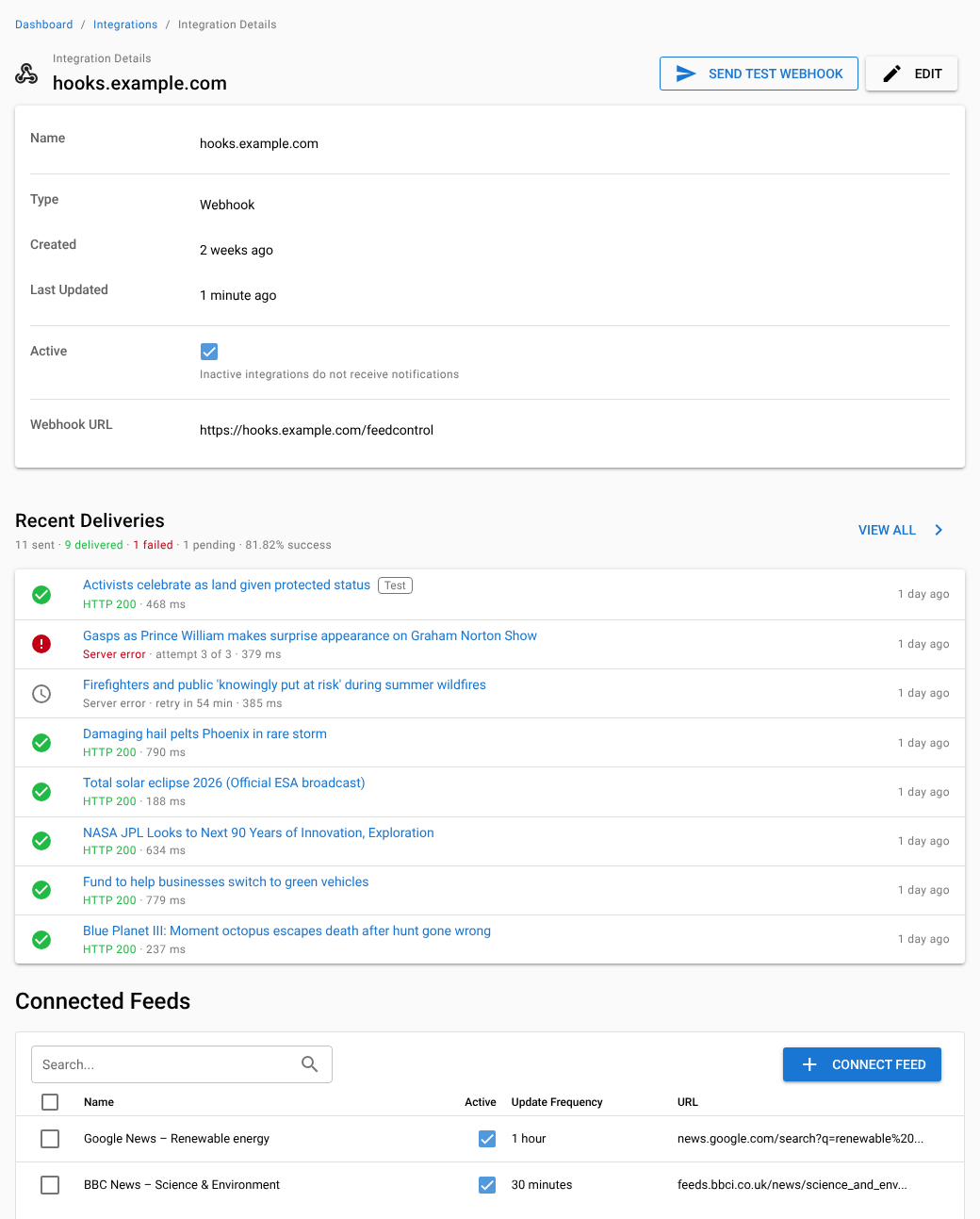
Failed deliveries are retried automatically, up to three attempts in all. The event log shows why each one failed and what you can do about it, and lets you retry it yourself. See Event logs. To get a daily email when deliveries fail, see Failure notifications.
Webhooks
A webhook integration sends each new item to a URL you choose, as an HTTP POST request with the item as JSON, so your own application can act on it. Add one with the Webhook card's Add button and enter the Webhook URL; if you leave out https://, Feed Control adds it. A webhook integration's page shows its Webhook URL, which you can change with Edit, and has a Send test webhook button. See Webhooks intro, Setting up a webhook and Request and payload reference.
Deleting an integration
On the Integrations screen, tick the integrations, click Actions, then Delete selected, and confirm. Deleting an integration also removes all of its connections.
Deleting a Slack or Discord integration doesn't remove Feed Control's app from your Slack workspace or its bot from your Discord server. Remove those in Slack or Discord if you no longer want them.
Can't find what you need? Contact support.