Feeds
Managing feed items
Every item Feed Control collects from a feed is listed on that feed's Feed Items tab. This page explains what the table shows, how to override your filters for individual items, re-fetch or delete items, and how items reach the dashboard and global search.
Opening the Feed Items tab
Go to Feeds, click a feed, then open the Feed Items tab. Unlike the other tabs, it has no Edit button: changes you make here take effect as soon as you confirm them.
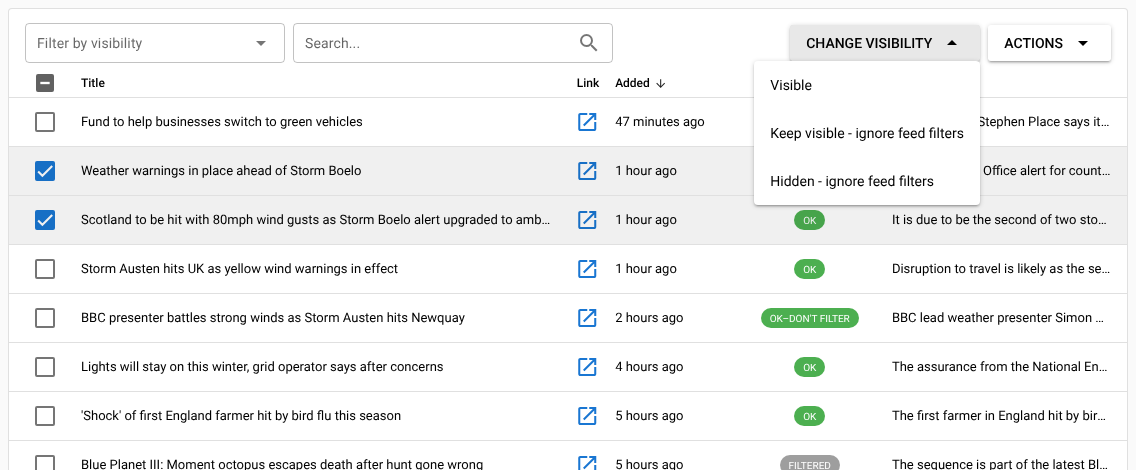
The items table
| Column | What it shows |
|---|---|
| Title | The item's title, after any title cleanup. |
| Link | Opens the original article. |
| Added | How long ago Feed Control added the item, for example "3 hours ago". |
| Status | Where the item stands. See Item statuses. |
| Preview | The start of the item's description. |
| Curation | Only shown in curation mode: a Pick button for each item that isn't picked yet. |
The newest items are listed first. Click the Added or Status column heading to sort by that column. Use the controls under the table to change the number of rows per page (10 to 500) and move between pages.
Click a row to open the item's details. See Item details.
Item statuses
| Status | Meaning | In your RSS/JSON output? |
|---|---|---|
| OK | The item passed your filters. | Yes |
| FILTERED | Your keep or remove filters left it out. | No |
| OK–DON'T FILTER | You set it to Keep visible - ignore feed filters. | Yes |
| HIDDEN | You set it to Hidden - ignore feed filters. | No |
| PROCESSING | Feed Control is still fetching the full article. | Not yet |
| FAILED | The full article couldn't be fetched, even after retries. | No |
PROCESSING and FAILED only appear on feeds with Fetch full text turned on. Each failure is recorded in Event logs, and you can try again with Re-fetch content. If items fail regularly, see Full-text extraction.
In curation mode, OK is shown as CANDIDATE, OK–DON'T FILTER as PICKED and HIDDEN as REJECTED. Only PICKED items go into the output.
Searching and filtering the list
- Search... finds items whose title, description or URL contains your text. The search is case-sensitive, so
Budgetdoesn't find "budget". - Filter by visibility shows only items with the visibilities you tick: Visible, Filtered, Hidden manually and Keep visible. Clear it to see everything again. In curation mode it's called Filter by curation status, with the options Candidate, Filtered, Rejected and Picked.
Selecting items
Tick the box at the start of a row to select it, or tick the box in the header row to select every item on the current page. The Change visibility and Actions buttons above the table only work while at least one item is selected.
While items are selected, the Actions menu at the top right of the screen is disabled. Clear your selection to use it.
Changing visibility
Visibility lets you override your filters for individual items.
- Select the items.
- Click Change visibility and choose an option.
- Click OK to confirm.
| Option | Effect |
|---|---|
| Visible | Shows the item (status OK), but your filters still apply to it: the next Re-filter Feed Items may filter it out again. |
| Keep visible - ignore feed filters | Always includes the item, whatever your filters say (status OK–DON'T FILTER). |
| Hidden - ignore feed filters | Always leaves the item out, whatever your filters say (status HIDDEN). |
In curation mode the button is called Change curation status, with the options Candidate, Picked and Rejected. You can also pick a single item with its Pick button. See Filters and curation.
Changing visibility doesn't update your published RSS/JSON files by itself. To publish the change straight away, choose Actions → Rebuild Feed at the top right. Otherwise the files are updated the next time new items arrive. Integrations aren't triggered again when you change an item's visibility.
Re-fetching content
If an article was fetched incompletely, or the site has changed it since, you can fetch it again. This is only available for feeds with Fetch full text turned on.
- Select the items.
- Click Actions and choose Re-fetch content.
- In the Fetch item URL content and overwrite: dialog, tick the fields to replace: Title, Date, Author, Description (excerpt) and Full item content. Only Full item content is ticked by default.
- Click Re-fetch.
The items show PROCESSING until the new content arrives. Ticked fields are replaced with the newly fetched values. Unticked fields keep their current values, except that an empty title, date, author or description is filled in if the article has one.
Note: Re-fetching runs the item through your filters again. An item you had set to Keep visible, Hidden, Picked or Rejected goes back to OK (or CANDIDATE) unless a filter removes it, so check its status afterwards and set it again if needed.
As with visibility changes, use Actions → Rebuild Feed to publish the re-fetched content straight away.
Deleting items
To delete selected items, click Actions above the table and choose Delete 1 item (or Delete n items), then click Delete in the Delete Feed Items dialog.
To delete every item in the feed, clear any selection, click Actions at the top right and choose Delete all feed items, then click Delete in the Delete All Feed Items dialog.
Deleting can't be undone. Also bear in mind:
- Deleted items can come back. If an item is still in the source feed, Feed Control adds it again at the next check and treats it as new, so it's sent to your integrations again. To keep an item out for good, set it to Hidden - ignore feed filters instead.
- Deleting doesn't update your published RSS/JSON files. Use Actions → Rebuild Feed if you want the items gone from them straight away.
Feed actions
The Actions menu at the top right of the feed details screen applies to the whole feed. It's available on every tab, but it's disabled while items are selected on the Feed Items tab.
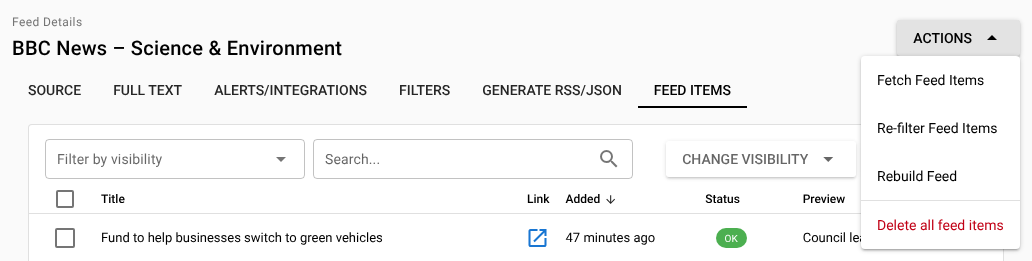
| Action | What it does |
|---|---|
| Fetch Feed Items | Checks the source feed for new items now instead of waiting for the next scheduled check. |
| Re-filter Feed Items | Applies your current filters to existing items. Items you set to Keep visible or Hidden aren't changed. It has no effect in curation mode. |
| Rebuild Feed | Regenerates the feed's published RSS/JSON files from the items and settings you have now, along with any widgets and bundles that use the feed. It does nothing if neither RSS nor JSON output is turned on. |
| Delete all feed items | Deletes every item. See Deleting items. |
Fetch Feed Items only works for feeds within your plan's feed limit.
Item details
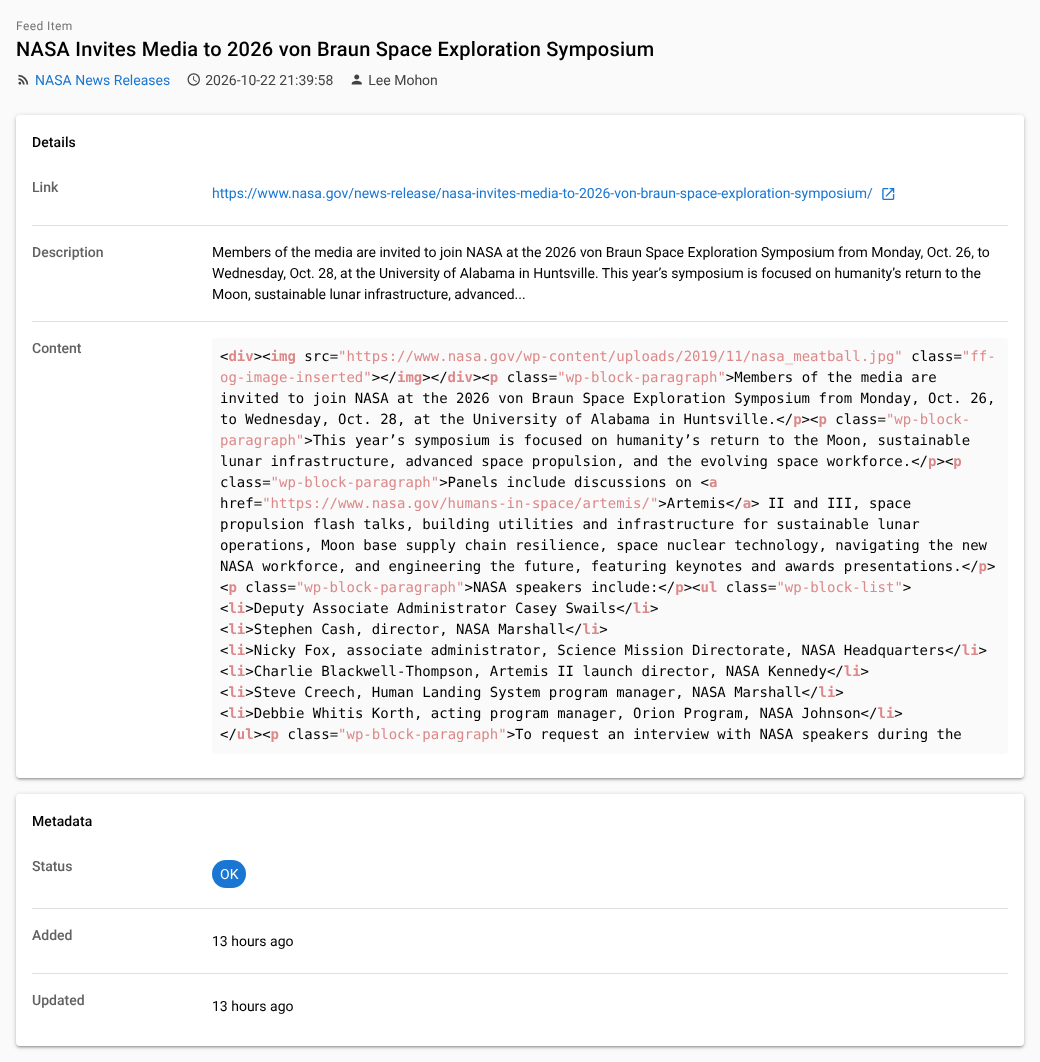
Click an item in the Feed Items table, on the dashboard or in search results to open its details. The screen shows:
- the title, a link back to the feed, the item's own publication date and the author
- Details: the Link, the Description and the Content, shown as HTML source
- Metadata: the Status, when the item was Added and when it was last Updated
The details screen is read-only. To change an item, go back to the Feed Items tab.
How long items are kept
Feed Control keeps the 100 most recently added items for each feed and deletes older ones whenever new items arrive. It keeps the full content of only the 50 most recent items; older items keep their title, link and description. This applies to every item, whatever its status, including picked and hidden items.
The dashboard's Latest items
The Latest items list on the Dashboard combines items from all your feeds, newest first. It shows each item's Title, Feed, Link and when it was Added, and has its own Search... box. Click an item to open its details.
The list leaves out:
- items from feeds with Hide items from dashboard ticked on the Source tab (see Source settings)
- FILTERED items
- items you've hidden or rejected (HIDDEN and REJECTED)
- FAILED items
Items still being processed are included.
Searching everything
The Search box at the top of every screen searches across your account as you type. On a phone, tap the search icon first. Results are grouped into:
- Feeds, matched on name, title or URL
- Bundles, matched on name or title
- Feed Items, matched on title or author, newest first
Up to five results are shown in each group. Item results include filtered and hidden items. Click a result to open it.
Can't find what you need? Contact support.