Feeds
Source settings
The Source tab controls where Feed Control gets a feed from and how it fetches it: the feed's address, how often it's checked, whether it's active and whether requests go through a proxy. This page also explains how editing works on every settings tab, the notices you may see on a feed, and how to delete a feed.
Opening a feed's settings
Go to Feeds and click a feed. The feed details screen opens with six tabs:
| Tab | What it covers |
|---|---|
| Source | The feed's address, check frequency, proxy and other basics (this page). |
| Full text | Fetching the full article for each item. See Full-text extraction. |
| Alerts/Integrations | Email alerts and connected integrations. See Email alerts and Integrations overview. |
| Filters | Keep and remove filters, title cleanup and curation mode. See Filters and curation. |
| Generate RSS/JSON | Your own RSS or JSON version of the feed. See Generating RSS or JSON. |
| Feed Items | The items Feed Control has collected. See Managing feed items. |
Editing settings
Settings are read-only until you start editing:
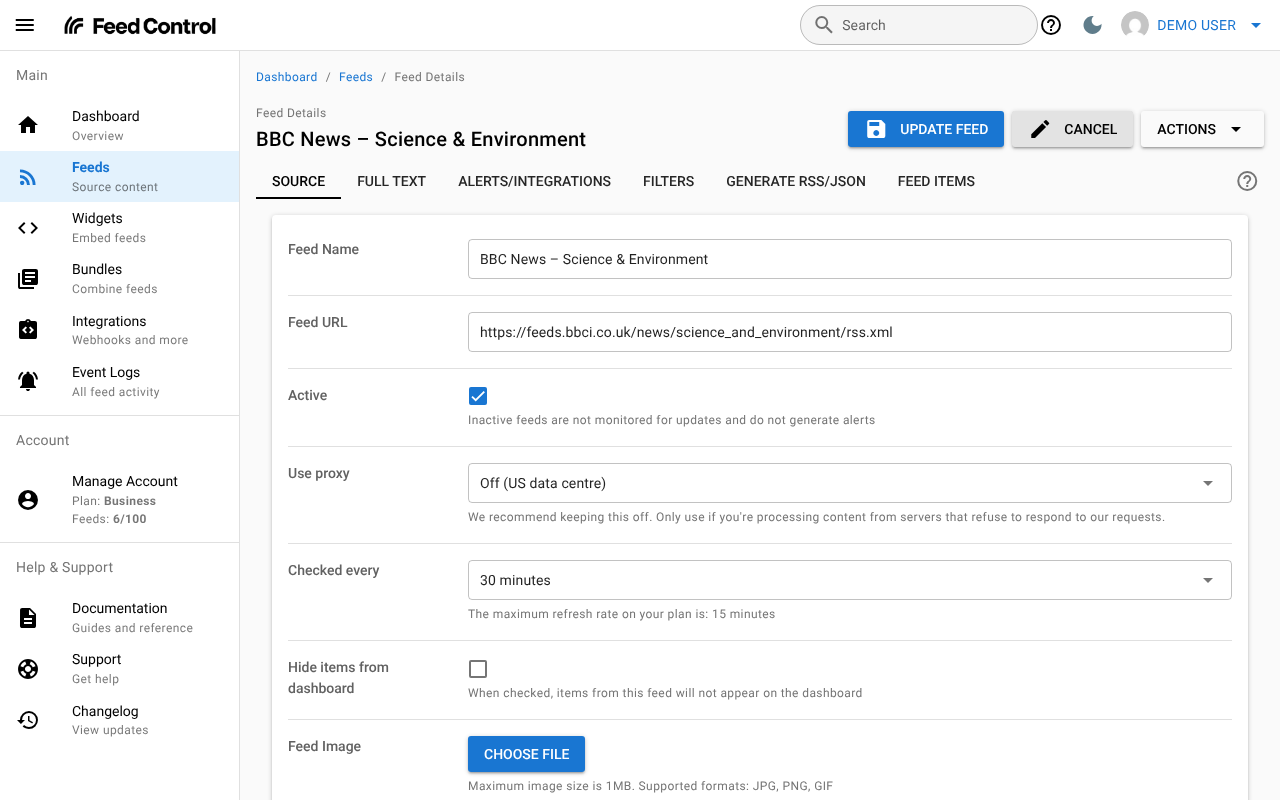
- Click Edit at the top right. It's available on every tab except Feed Items.
- Make your changes. Editing applies to all tabs at once, so you can change settings on several tabs and save them together.
- Click Update Feed to save, or Cancel to discard your changes.
Things to know:
- If you click Update Feed without changing anything, you'll see No changes to save.
- If Feed Control can't save a change, an Error Saving Changes message explains why, and you stay in edit mode so you can fix it.
- If Update Feed doesn't seem to do anything, a field has an error: look for a red message under a field on each tab. The usual causes are a Feed URL that isn't a full address (it must start with
https://orhttp://) and an empty Feed Title on the Generate RSS/JSON tab. - Feed Image is the exception: an image is uploaded or removed as soon as you choose it, and Cancel doesn't undo that.
Source tab settings
| Setting | What it does |
|---|---|
| Feed Name | Your name for the feed inside Feed Control. It's shown in your lists and in email alerts, but not in the RSS or JSON feeds you generate (they use Feed Title on the Generate RSS/JSON tab). Feed Control fills it in from the source's title the first time it fetches the feed. |
| Feed URL | The address Feed Control fetches. See Feed URL. |
| Active | Whether Feed Control monitors the feed. See Active. |
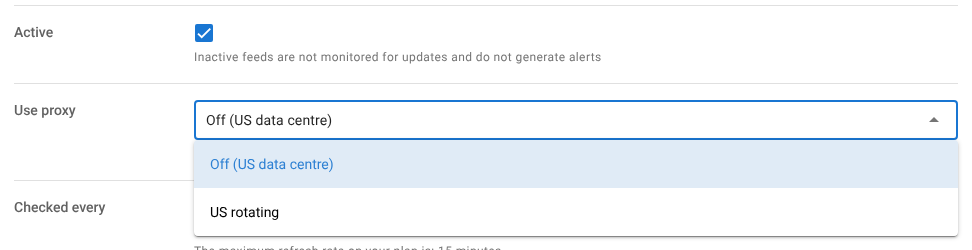
| Use proxy | Off (US data centre) or US rotating. See Proxy routing. |
| Checked every | How often Feed Control checks the source for new items. See Checked every. |
| Hide items from dashboard | When ticked, items from this feed don't appear in Latest items on the Dashboard. Feed Control still collects them and sends alerts and integration messages as usual. |
| Feed Image | An image for the feed: JPG, PNG or GIF, up to 1MB. Depending on the RSS template, Feed Control uses it as the feed's image or logo in the RSS feed it generates. Click the image to view it full size. |
Feed URL
The feed's address must be a full URL, including https:// or http://. If you change it, Feed Control fetches the new address from the next check onwards. Items it has already collected stay on the Feed Items tab.
Some addresses are shown differently:
- Webpage to RSS feeds show Webpage to RSS [preview] instead of the address. Click [preview] to open the feed in Feed Creator. Click Edit to see the full address.
- For Webpage to RSS feeds and a few other special addresses, a note says This URL is treated differently internally. To subscribe in a feed reader, use the RSS link on the Generate RSS/JSON tab instead of this address.
![The Source tab for a Webpage to RSS feed, with Feed URL shown as Webpage to RSS [preview] and the note about using the RSS link](/images/docs/source-settings-webpage-to-rss-url.png)
Active
Untick Active to stop Feed Control monitoring a feed without deleting it. An inactive feed:
- isn't checked for new items, so it doesn't send email alerts or integration messages, and its generated RSS or JSON feed stops updating
- keeps its settings and the items already collected
- still counts towards your plan's feed limit.
Tick Active again to resume.
Checked every
Choose 15 minutes, 30 minutes, 1 hour, 6 hours, 12 hours or 1 day. New feeds are checked every hour.
How often a feed can be checked depends on your plan:
| Plan | Fastest check |
|---|---|
| Basic | Every hour |
| Plus | Every 30 minutes |
| Business | Every 15 minutes |
If you choose a shorter interval than your plan allows, Feed Control checks the feed at your plan's fastest rate instead.
Each check reads up to the 15 newest entries in the source. If a source publishes more than 15 items between checks, older ones can be missed, so check busy sources more often.
To check a feed straight away, use Actions > Fetch Feed Items at the top right of the feed. See Managing feed items.
Last fetched and Created
The Meta section of the Source tab shows:
- Last fetched: how long ago Feed Control last checked the source, for example 10 minutes ago.
- Created: how long ago you added the feed.
Each scheduled check is also recorded in Event Logs under Feed Fetches. See Event logs.
Notices at the top of the page
A red notice above the tabs tells you when a feed isn't being updated:
| Notice | Why it appears | What to do |
|---|---|---|
| Feed disabled. | You have more feeds than your plan allows. Feed Control keeps your oldest feeds running up to the limit; feeds added after that are disabled. | Delete feeds you don't need, or change your plan. |
| Updates paused — Google News feeds require a Plus or Business plan | The feed is a Google News feed and your account is on the Basic plan. | Upgrade, or delete the feed. |
| Updates paused — headless browser fetching requires a Plus or Business plan | The feed uses Use headless browser on the Full text tab and your account is on the Basic plan. | Turn off Use headless browser, or upgrade. See Full-text extraction. |
The Feeds screen shows a Paused feeds banner when any of your Google News or headless-browser feeds are paused for these reasons.
Proxy routing
When proxy routing is on, Feed Control sends its requests for the feed through a rotating proxy service, so they come from different US servers rather than from our data centre. This can help with sites that refuse to respond to our requests.
Proxy routing applies to two kinds of request:
- Fetching Webpage to RSS feeds, when Feed Control reads the web page the feed is built from.
- Full-text extraction, when Feed Control fetches each item's article (feeds with Fetch full text on). See Full-text extraction.
It has no effect on fetching other feeds, so turning it on for a regular feed without Fetch full text makes no difference.
You don't need to turn it on for Google News feeds: Feed Control already uses a proxy when it extracts Google News articles.
When to use proxy routing
Most feeds don't need a proxy. Try without it first, and turn it on only if you have trouble, for example:
- a Webpage to RSS feed finds no items, although the page works in your browser
- full-text extraction keeps failing for a site (look for failed Extractions in Event Logs).
If a feed still doesn't work, contact support and tell us which feed it is.
Proxy limits
The number of feeds that can use proxy routing depends on your plan:
| Plan | Feeds with proxy routing |
|---|---|
| Basic | 10 |
| Plus | 20 |
| Business | 50 |
Every feed with Use proxy set to anything other than Off (US data centre) counts, including inactive feeds. If you've reached the limit, saving shows You have reached the proxy limit of your plan.
Turning on proxy routing
You can only turn on proxy routing for a feed you've already added, because the add-feed preview doesn't use it.
- Go to Feeds and click the feed.
- Click Edit.
- In Use proxy, choose US rotating.
- Click Update Feed.
- Click Actions > Fetch Feed Items to check the feed now.
- Open the Feed Items tab to see whether new items have arrived. Full-text extraction can take a minute or so, so reload the page if you don't see them straight away.
Turning on proxy routing doesn't re-fetch items Feed Control has already collected. For a full-text feed, you can extract existing items again with Re-fetch content. See Full-text extraction.
Deleting a feed
- Open the feed's Source tab.
- In the Dangerous section, click Delete feed.
- Click Delete to confirm.
Deleting a feed removes the feed and all its stored items. It's also removed from any bundles, and its integration connections and widgets are deleted. Your integrations themselves are kept. This can't be undone.
To delete several feeds at once, tick them on the Feeds screen, open Actions and choose Delete (the option shows how many feeds you've selected, for example Delete 3 feeds), then confirm.
If you only want to stop updates for a while, untick Active instead. To clear a feed's items but keep the feed, use Actions > Delete all feed items. See Managing feed items.
Can't find what you need? Contact support.