Feeds
Generating RSS or JSON
Feed Control can publish an RSS file, a JSON file or both for each feed, and keeps them up to date as new items arrive. Use them to syndicate content to news platforms such as SmartNews, Flipboard or MSN, to subscribe in a feed reader, to drive automation services such as IFTTT or Zapier, or as input to your own applications. This page covers the Generate RSS/JSON tab on the feed details screen.
Note: If you're a developer and want each new item pushed to your application as it arrives, a webhook integration may suit you better. See Webhooks intro.
When to use RSS or JSON output
If your source is already an RSS feed with all the content you need, you can keep using the source feed. Turn on output when Feed Control changes or adds something, for example when:
- the source isn't a regular RSS feed, such as a feed made from a webpage
- Fetch full text is on, so the output has the full article rather than a summary (see Full-text extraction)
- you use filters, title cleanup or curation mode to change which items appear (see Filters and curation)
- a platform needs the feed in a particular format (see RSS templates)
Turning on output
- Go to Feeds, click the feed and open the Generate RSS/JSON tab.
- Click Edit at the top right.
- Under Publish, tick RSS, JSON or both. The rest of the settings appear once a format is ticked.
- Adjust the settings described in Output settings.
- Click Update Feed.
Feed Control generates the files as soon as you save a change to Publish. Feeds you add with Fetch full text on, or from a webpage, start with RSS output already turned on.
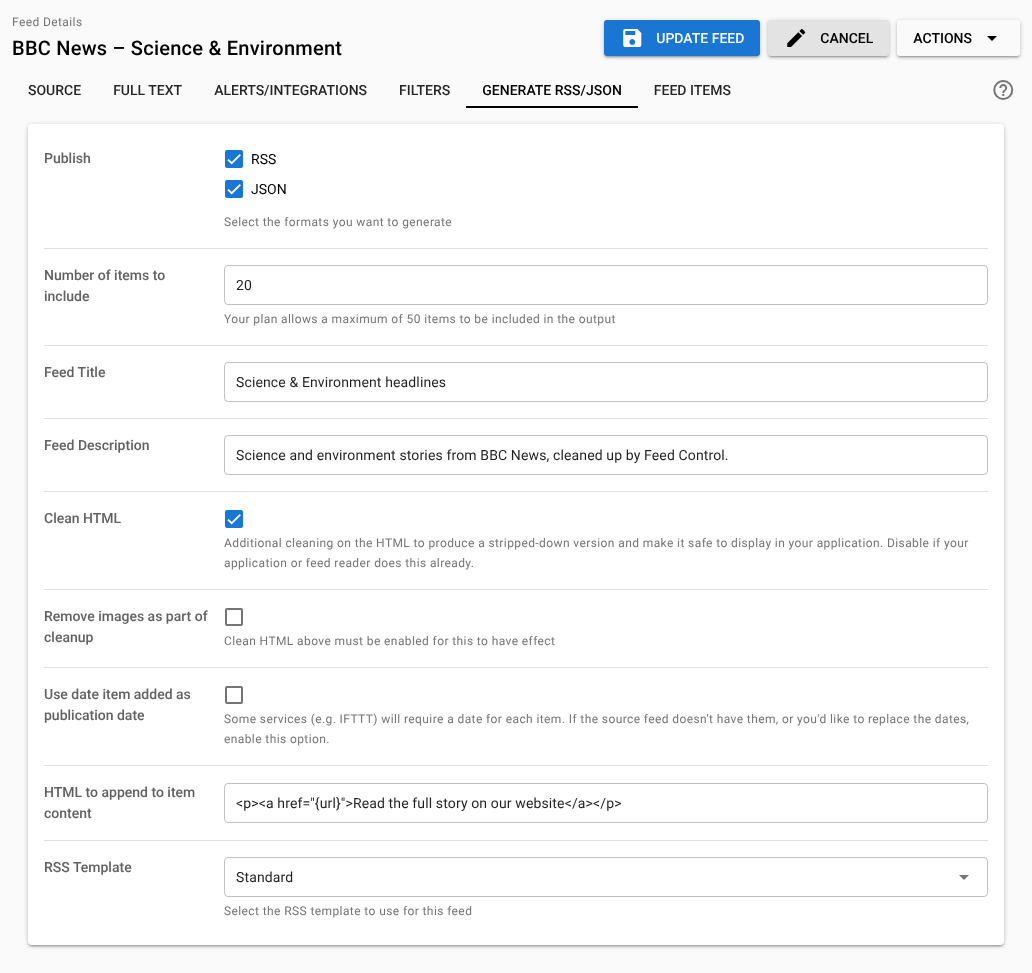
To stop publishing a format, untick it and click Update Feed. Feed Control stops updating that file, but the version last published stays at its URL.
Finding your feed URLs
When output is on, the Generate RSS/JSON tab shows an RSS and/or JSON button next to Links.
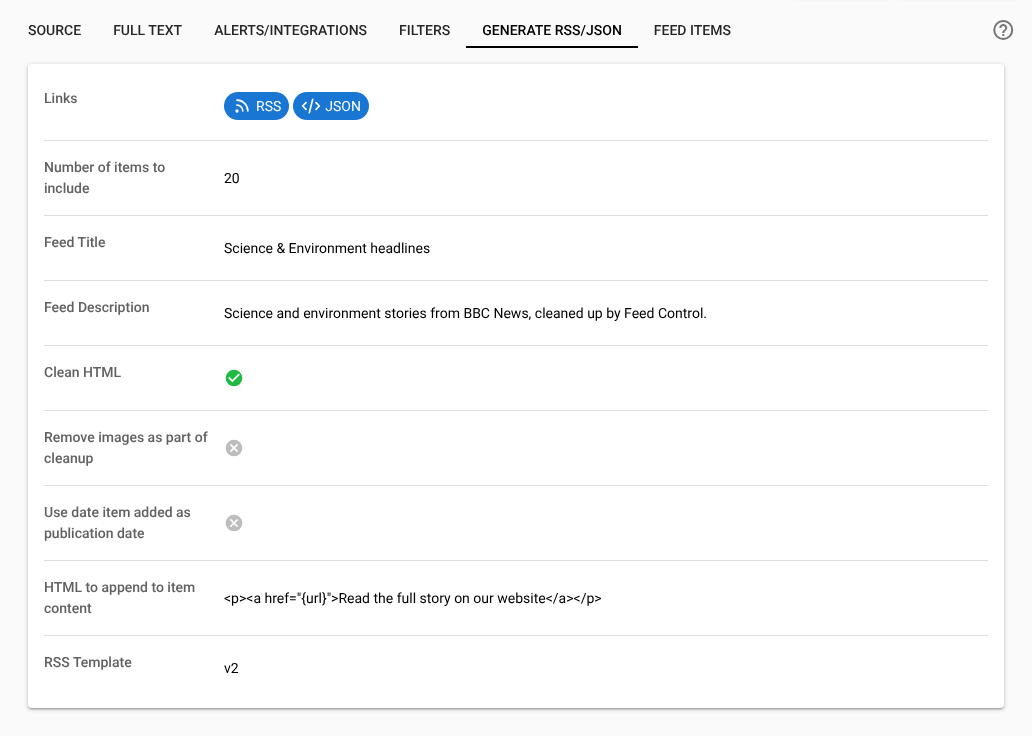
Click a button to open a preview page in a new tab. It shows:
- the public URL of the file (RSS URL or JSON URL), with a Copy URL button
- for RSS, the Template in use, with a Validate button for the SmartNews and MSN templates that opens that platform's feed checker
- a preview of the file, built from your current settings
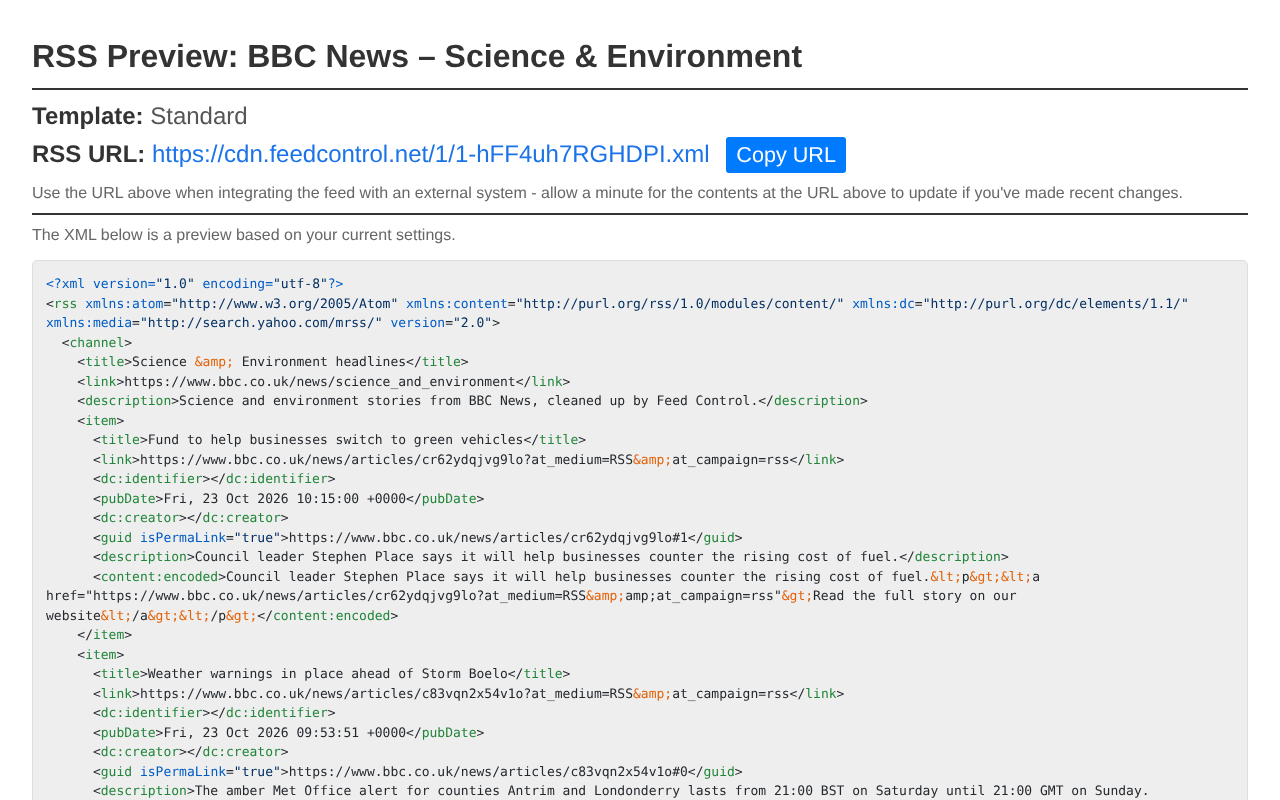
Use the public URL, not the preview page's address, wherever you need the feed. The preview page only works while you're signed in to Feed Control.
Public URLs look like this:
https://cdn.feedcontrol.net/<account number>/<feed number>-<random code>.xml
https://cdn.feedcontrol.net/<account number>/<feed number>-<random code>.json
The URL for a feed never changes. The files are public, so anyone with the URL can read them. They're static files, so query parameters can't change what they contain.
The preview reflects your settings now, while the file at the public URL reflects them as they were when it was last generated. If they differ, see When the files update.
Tip: To collect the URLs of many feeds at once, go to Feeds, optionally select some feeds, and choose Export → Export as CSV. The file has Generated RSS URL and Generated JSON URL columns. Export as OPML lists each feed's generated RSS URL when RSS output is on, and its source URL otherwise.
Output settings
| Setting | What it does |
|---|---|
| Publish | The formats to generate: RSS, JSON or both. |
| Number of items to include | How many items each file contains. |
| Feed Title | The title of the generated feed. Required. |
| Feed Description | The description of the generated feed. |
| Clean HTML | Replaces each item's content with a simplified, safe version of its HTML. |
| Remove images as part of cleanup | Also removes images from the content. Only works with Clean HTML on. |
| Use date item added as publication date | Dates items by when Feed Control added them instead of their original date. |
| HTML to append to item content | HTML added to the end of each item's content. |
| RSS Template | The layout of the RSS file. See RSS templates. |
Number of items to include
Each file contains the most recently added items that are allowed through, newest first. Items count as allowed through if their status on the Feed Items tab is OK or OK–DON'T FILTER, or PICKED in curation mode. Items that are filtered, hidden, rejected, still processing or failed are never included. See Managing feed items.
Items are ordered by when Feed Control added them, not by their publication date.
Leave the field blank to use the default: 10 items, or 20 with the Flipboard template.
Plan limits: Basic plans can include up to 10 items, Plus plans and the free trial up to 20, and Business plans up to 50. The description under the field shows your plan's maximum. If a saved number is higher than your plan allows, for example after a plan change, Feed Control uses your plan's maximum. See Plans and limits.
Feed title, description and image
Feed Title and Feed Description become the generated feed's title and description; any HTML tags in them are removed. Both start out as the source feed's title and description. The feed's link is the website address given by the source feed.
The Feed Image is set on the Source tab (see Source settings). It's used as the feed's logo by the Standard template, as an <image> element, and by the SmartNews template, as <snf:logo>. Other templates and JSON output don't include it.
Clean HTML
Clean HTML replaces each item's content with a stripped-down, sanitised version that's safe to display in web applications. It keeps paragraphs, links, bold and italic text, lists, quotes, headings, code, tables, images and figures. It removes scripts, styles, embedded frames, forms, classes, inline styles and tracking pixels, and converts <div> elements to paragraphs.
Most news reading applications already sanitise item content, so use this when the application reading your feed doesn't, or when you prefer Feed Control's formatting. It applies to the item content, not the short description.
Tick Remove images as part of cleanup as well to strip images and figures, including their captions.
Use date item added as publication date
Some services, such as IFTTT, need every item to have a date. Feeds made from webpages often have no item dates. Turn this option on to use the date and time Feed Control first added each item as its publication date.
You can also use it with any feed whose dates are missing or unreliable. With the option off, items keep their original date, and items without one have no date in the output.
HTML to append to item content
Enter HTML to add to the end of every item's content, for example a link back to the original article or a short notice. Two placeholders are replaced for each item:
| Placeholder | Replaced with |
|---|---|
{url} |
The item's link |
{final_url} |
The item's address after any redirects, if Feed Control knows it, otherwise the item's link |
For example:
<p><a href="{url}">Read the full story on our website</a></p>
The HTML is cleaned in the same way as Clean HTML, so scripts, styles and embedded frames are removed. It's added to the item content only, not the description.
RSS templates
Some platforms need RSS feeds to follow their own rules. The RSS Template setting changes the layout of the RSS file to suit them. It doesn't affect JSON output.
| Template | Use it for | Differences from Standard |
|---|---|---|
| Standard | Feed readers, automation services and your own applications. New feeds use it by default. | None. Each item's featured image is included as <media:thumbnail>, and the feed image as <image>. |
| Legacy, no featured image (v1) | Feeds created before the Standard template existed, so their output stays the same. | No item images and no feed image. |
| SmartNews | Publishing to SmartNews. | Adds the SmartNews namespace, uses the feed image as <snf:logo>, and wraps descriptions and content in CDATA. |
| Publishing to Flipboard. | Includes each item's featured image as an <enclosure> and no feed image. Defaults to 20 items. |
|
| MSN article | Publishing articles to MSN. | Adds the MSN namespaces, marks the feed and each item as English (en), adds a <mi:shortTitle> with the item title, includes the featured image as <media:content>, and wraps descriptions and content in CDATA. |
Featured images come from the source feed or, with Fetch full text on, from the article page.
Plus and Business plans: Standard and Legacy are available on every plan. SmartNews needs a Plus or Business plan, and is also available during the free trial. Flipboard and MSN article need a Business plan. Templates your plan doesn't include are marked [UPGRADE PLAN TO ENABLE]. See Plans and limits.
If a feed is set to a template your plan doesn't include, for example after a plan change, Feed Control stops updating its RSS file until you choose a template your plan includes. JSON output carries on as normal.
For custom templates on the Business plan, contact support.
When the files update
Feed Control regenerates a feed's files:
- after a scheduled check finds new items (with Fetch full text on, once those items have been processed)
- when you save a change to Publish or RSS Template
- when you choose Actions → Rebuild Feed at the top right of the feed details screen
Other changes don't regenerate the files by themselves. These include the other settings on this tab, the feed image, filters, curation mode, picking items and changing item visibility. To publish them straight away, choose Actions → Rebuild Feed; otherwise they go out the next time new items arrive.
Files are served through a CDN. After a file is regenerated, allow about a minute for the new version to appear at its URL.
Each upload is recorded in Event logs: choose CDN Uploads to see only uploads. If an upload fails, Feed Control retries it automatically, and each attempt is logged.
What's in the output
Source feeds often contain many elements beyond the core RSS ones. Feed Control outputs a fixed set:
- For the feed: the title, the link, the description and, depending on the template, the feed image.
- For each item:
- the title (after any title cleanup)
- the link
dc:identifier, the item's address after any redirects (empty if Feed Control doesn't know it)- the publication date (
pubDate) - the author (
dc:creator) - the featured image, in the element the template uses
- a
guid - the description (the summary)
content:encoded(the item content, with any cleaning and appended HTML)
Other elements in the source feed, such as categories, podcast audio enclosures and comments links, aren't carried over. If you need them, use the source feed.
Example RSS output
This example uses the Standard template. The output has been indented for readability and shortened, with [...] marking omissions.
<?xml version="1.0" encoding="utf-8"?>
<rss version="2.0" xmlns:atom="http://www.w3.org/2005/Atom" xmlns:content="http://purl.org/rss/1.0/modules/content/" xmlns:dc="http://purl.org/dc/elements/1.1/" xmlns:media="http://search.yahoo.com/mrss/">
<channel>
<title>Example Times: Climate</title>
<link>https://www.example.com/climate</link>
<image>
<title>Example Times: Climate</title>
<link>https://www.example.com/climate</link>
<url>https://cdn.feedcontrol.net/[...].png</url>
</image>
<description>Climate coverage from the Example Times</description>
<item>
<title>Wind power overtakes gas for the first time</title>
<link>https://www.example.com/climate/wind-power-overtakes-gas</link>
<dc:identifier>https://www.example.com/climate/wind-power-overtakes-gas</dc:identifier>
<pubDate>Tue, 20 Oct 2026 08:15:00 +0000</pubDate>
<dc:creator>Sam Taylor</dc:creator>
<media:thumbnail url="https://www.example.com/images/wind-farm.jpg"></media:thumbnail>
<guid isPermaLink="true">https://www.example.com/climate/wind-power-overtakes-gas</guid>
<description>Wind farms generated more electricity than gas-fired power stations [...]</description>
<content:encoded><p>Wind farms generated more electricity [...]</p></content:encoded>
</item>
[...]
</channel>
</rss>
Example JSON output
The JSON file mirrors the RSS structure. This example has been formatted for readability and shortened, with [...] marking omissions.
{
  "rss": {
    "@attributes": {
      "version": "2.0"
    },
    "channel": {
      "title": "Example Times: Climate",
      "link": "https://www.example.com/climate",
      "description": "Climate coverage from the Example Times",
      "item": [
        {
          "title": "Wind power overtakes gas for the first time",
          "link": "https://www.example.com/climate/wind-power-overtakes-gas",
          "dc_identifier": "https://www.example.com/climate/wind-power-overtakes-gas",
          "pubDate": "Tue, 20 Oct 2026 08:15:00 +0000",
          "dc_creator": "Sam Taylor",
          "media_content": {
            "@attributes": {
              "url": "https://www.example.com/images/wind-farm.jpg"
            }
          },
          "guid": "https://www.example.com/climate/wind-power-overtakes-gas",
          "description": "Wind farms generated more electricity than gas-fired power stations [...]",
          "content_encoded": "<p>Wind farms generated more electricity [...]</p>"
        },
        {
          "title": "Councils back new cycle lanes",
          "link": "https://www.example.com/climate/councils-back-cycle-lanes",
          "dc_identifier": "",
          "pubDate": "Mon, 19 Oct 2026 16:40:00 +0000",
          "dc_creator": "",
          "guid": "https://www.example.com/climate/councils-back-cycle-lanes",
          "description": "Three councils have approved plans for [...]",
          "content_encoded": "<p>Three councils have approved [...]</p>"
        }
      ]
    }
  }
}
If you're reading the JSON in code, note that:
- element names containing a colon use an underscore instead, so
dc:creatorbecomesdc_creator - attributes appear under
@attributes, as inmedia_content - the featured image is always
media_content, whichever RSS template you choose, and the feed image isn't included - a missing author or
dc_identifieris an empty string, while items without a date have nopubDatekey and items without an image have nomedia_contentkey - if the feed has exactly one item,
itemis a single object rather than a list, and if it has none, there's noitemkey - the file has no line breaks, and forward slashes are escaped as
\/, which JSON parsers handle automatically
Bundles
Bundles combine several feeds into one. They have their own Generate RSS/JSON tab with similar settings, and they respect each feed's filters and curation. See Bundles.
If the file isn't what you expect
- The URL returns "not found" or old content. Choose Actions → Rebuild Feed, wait a minute, then check Event logs for a failed upload.
- The RSS file has stopped updating. Check that the RSS Template is one your plan includes, and that the feed is Active on the Source tab.
- Items are missing. Check their status on the Feed Items tab: only items allowed through by your filters, or picked in curation mode, are included. See Managing feed items.
For more help, see Troubleshooting.
Can't find what you need? Contact support.