Feeds
Adding a feed
This page explains how to add a feed to Feed Control: from a feed a site already publishes, from a web page that has no feed, or from Google News. It also covers plan limits and what happens after you save.
Where to start
You can start adding a feed from two places:
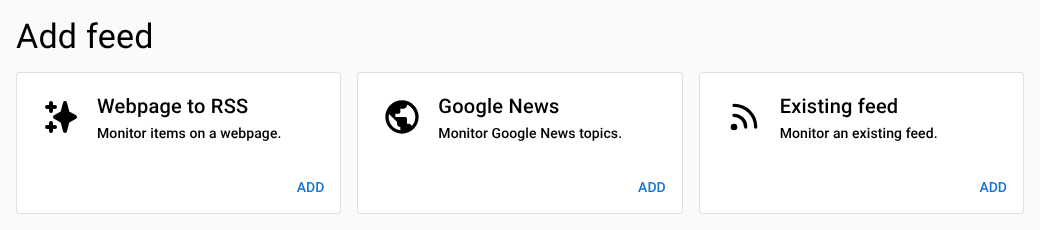
- Dashboard. The Add feed section at the top of the Dashboard shows three cards: Webpage to RSS, Google News and Existing feed. Click Add on the card you want.
- Feeds screen. On the Feeds screen, click Add feed (or Add Feed if you don't have any feeds yet). This opens a Choose feed type page with the same three options.
The add-feed steps open on their own pages, outside the main app. A row of steps at the top shows where you are: 1. Choose feed type, 2. Enter source, 3. Filter, 4. Alerts & integrations, 5. Save. When you've finished, Manage feed takes you back to the feed in the app.
Choosing a source
| Option | Use it when | Plans |
|---|---|---|
| Existing feed | The site already publishes a feed. Feed addresses often end in /feed/, .rss or .xml. |
All plans |
| Webpage to RSS | The page has no feed, but it lists items you want to follow, such as news stories, blog posts or job listings. | All plans |
| Google News | You want to follow a Google News topic or search. | Plus and Business |
Adding an existing feed
- Click Add on the Existing feed card.
- In Feed URL, paste the feed's address and click Next. To try Feed Control out first, you can pick one of the example feeds under ...or start with one of these instead.
- On the Filter and Preview step, check the preview and set any options (see below). Click Next.
- On the Alerts and Integrations step, choose your email alerts and integrations (see below). Click Next.
- On the Save Feed step, click Save.
Tip: If you paste a FiveFilters Full-Text RSS address (one containing
makefulltextfeed.php?url=), Feed Control saves the original feed address and switches on Fetch full text for you.
The Filter and Preview step
Feed Control loads the feed and shows a preview of up to 10 of its latest items. Click Content under an item to see what the feed contains for it.
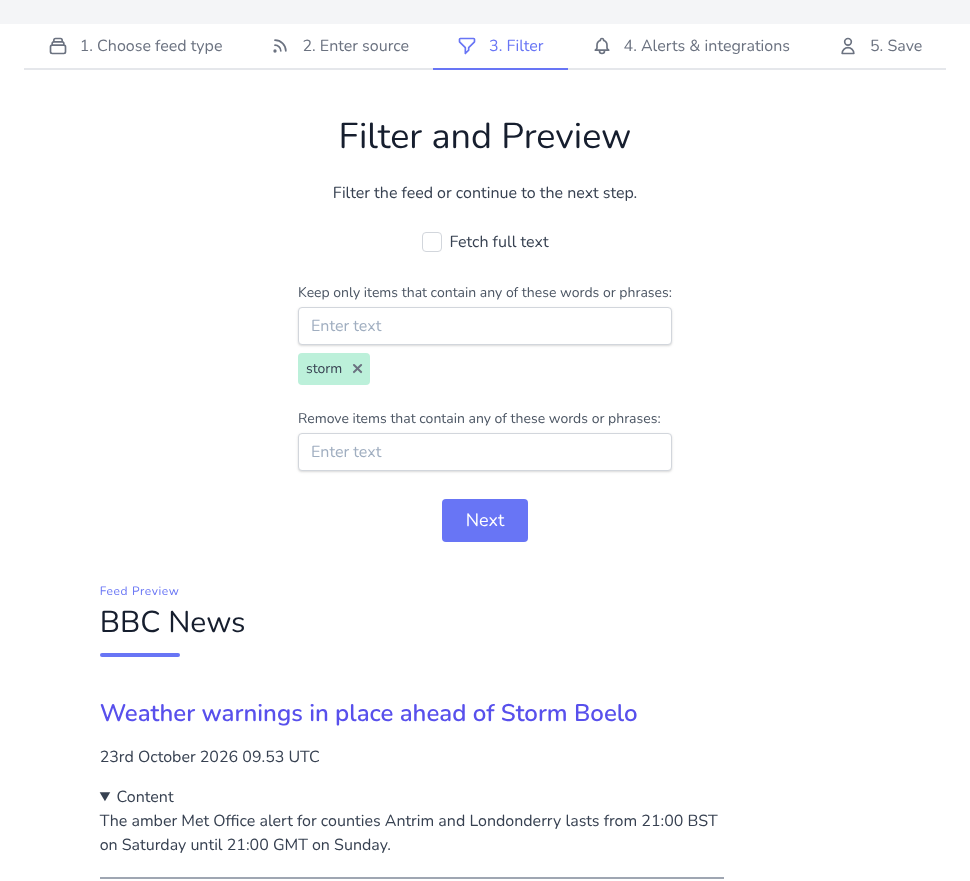
On this step you can:
- Fetch full text. Tick this if the feed only contains a summary or the first paragraph of each article. With it ticked, Content shows the full article Feed Control extracts from the web page. Leave it unticked if the feed already has the full text, or if you don't need it. See Full-text extraction.
- Keep only items that contain any of these words or phrases. Type a word or phrase and press Enter (or click Add text "…"). You can add several at once by separating them with commas. An item only needs to contain one of them to be kept.
- Remove items that contain any of these words or phrases. Items containing any of these are dropped.
The preview updates as you add or remove filters. Your filters are saved with the feed and appear later on its Filters tab as Text contains and Text must not contain. See Filters and curation for the other filter types.
If Feed Control can't load any items, you'll see No feed items detected and you can't continue. Check the address and try again. If items stop showing only because your filters remove them all, you can still continue: future items that match your filters will be kept.
The Alerts and Integrations step
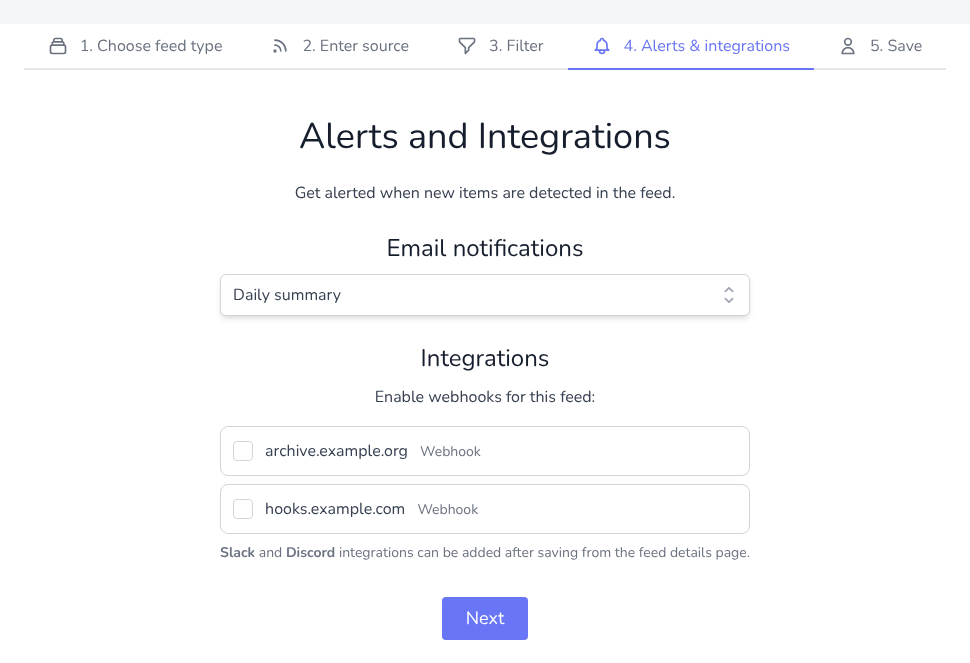
- Email notifications. Choose Off, Whenever a new item is detected, Daily summary, Weekly summary or Monthly summary. See Email alerts.
- Integrations. If you've already set up webhook integrations, tick the ones that should receive this feed's new items. Slack and Discord integrations are connected after saving, from the feed's Alerts/Integrations tab. See Integrations overview.
You can change all of these later from the feed's settings.
Saving the feed
On the Save Feed step, click Save. The Saved! page then offers:
- Manage feed to open the feed in the app.
- Preview generated RSS feed, if Feed Control is already generating an RSS feed for it (see What happens after you save).
If you aren't signed in, the Save Feed step offers Register and Save to start a free trial, or Login and Save if you already have an account. After you register or sign in, you're returned to the Save Feed step: click Save to add the feed.
Adding a web page
Webpage to RSS uses Feed Creator, a FiveFilters tool that turns a list of items on a web page into a feed.
- Click Add on the Webpage to RSS card. Feed Creator (createfeed.fivefilters.org) opens.
- Enter the address of the web page and tell Feed Creator which items on the page to pick up. Check its preview.
- When you're happy with the preview, continue to Feed Control. You arrive at the Filter and Preview step.
- Carry on as for an existing feed: set filters and Fetch full text if you need them, choose alerts and integrations, and save.
What gets created:
- The feed's address is a Feed Creator address. On the feed's Source tab, Feed URL shows Webpage to RSS [preview]. Click [preview] to open the feed in Feed Creator.
- Feed Control switches on RSS generation for the feed straight away, so you have a normal feed address to use in a feed reader. Copy it from the Generate RSS/JSON tab. See Generating RSS or JSON.
- If the site blocks Feed Control's requests, you can turn on proxy routing after saving.
Adding a Google News feed
Plus and Business plans: Google News feeds are only available on Plus and Business plans. On the Basic plan, the Google News card on the dashboard is greyed out and shows Plus plan required with an Upgrade button. The Choose feed type page still lists Google News, but a Google News feed can't be saved on the Basic plan.
- On Google News, open the topic you want to follow or run a search. Copy the address from your browser.
- In Feed Control, click Add on the Google News card.
- Paste the address into Google News URL (topic or search results) and click Next. Or pick one of the examples: Top Stories, Business or Technology.
- On the Filter and Preview step, Fetch full text is already ticked. Keep it ticked: Google News items link to Google News pages rather than to the articles themselves. With full text on, Feed Control fetches each original article and replaces the item's link with the publisher's address.
- Choose alerts and integrations, and save as for any other feed.
Things to know:
- Use the address of the Google News home page, a topic page or a search results page. Feed Control converts it to Google News's feed format for you.
- For searches, if your search terms don't include a
when:time limit, Feed Control only returns results from the last two days (it addswhen:2d). To change the period, add your own, such aswhen:7d, to the search. - If your account moves to the Basic plan, Google News feeds stop updating and show Updates paused — Google News feeds require a Plus or Business plan. See Source settings.
Feed limits
Each plan allows a set number of feeds. See Plans and limits. When you've reached your limit:
- The Choose feed type page says Sorry, your current subscription plan does not allow more feeds and the feed types can't be selected.
- The Save Feed step says You cannot currently add new feeds to your account and offers Manage account instead of Save.
Inactive feeds still count towards the limit. To add more, delete feeds you no longer need (see Deleting a feed) or change your plan (see Billing and plan changes).
What happens after you save
- Feed Control fetches the feed straight away. The items it finds appear on the feed's Feed Items tab. If Fetch full text is on, each item shows the status PROCESSING until its article has been extracted. See Managing feed items.
- The feed is named after its source. The first fetch fills in Feed Name and Feed Title from the source feed's title. You can change them on the Source and Generate RSS/JSON tabs.
- The feed is checked on a schedule. New feeds are checked every hour. To change this, see Checked every.
- Email alerts start with the next new item. Items found by the first fetch aren't emailed to you.
- RSS generation depends on the feed type. It's switched on automatically for Webpage to RSS feeds and for feeds with Fetch full text on. For other feeds, switch it on from the Generate RSS/JSON tab if you need it. See Generating RSS or JSON.
To review or change any of these settings, open the feed from the Feeds screen. See Source settings.
Can't find what you need? Contact support.