Feeds
Filters and curation
Filters decide which of a feed's items Feed Control passes on to your RSS/JSON output, bundles, widgets, email alerts, integrations and dashboard. Curation mode goes further: nothing appears in the generated feed until you pick it. This page covers the Filters tab on the feed details screen and how filtered and curated items behave.
Editing a feed's filters
- Go to Feeds and click the feed you want to change.
- Open the Filters tab.
- Click Edit at the top right.
- Change the settings described below.
- Click Update Feed to save, or Cancel to discard your changes.
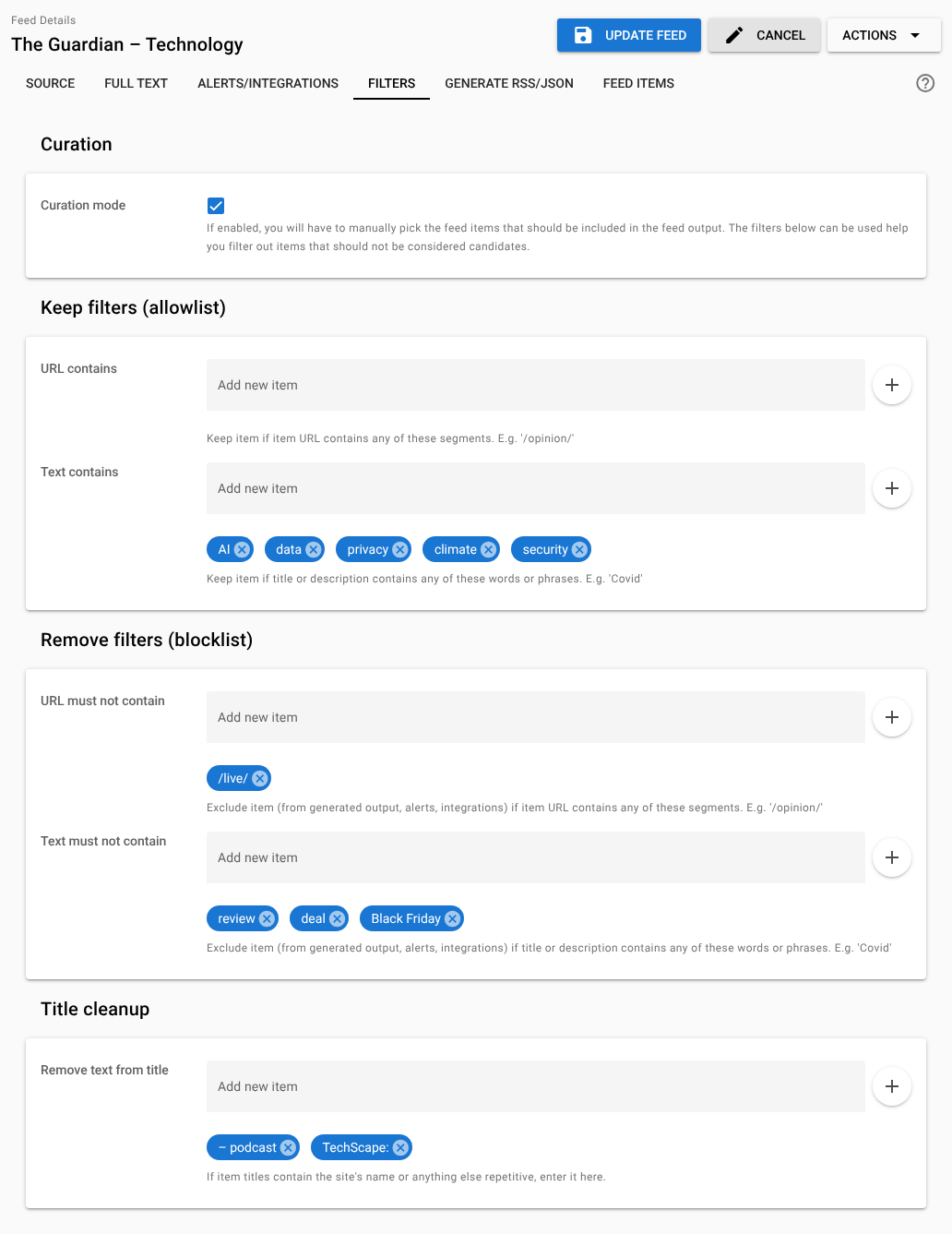
The tab has four sections:
| Section | Setting | What it does |
|---|---|---|
| Curation | Curation mode | Only items you pick are included in the generated RSS/JSON. See Curation mode. |
| Keep filters (allowlist) | URL contains | Keep an item only if its URL contains at least one of these segments. |
| Text contains | Keep an item only if its text contains at least one of these words or phrases. | |
| Remove filters (blocklist) | URL must not contain | Remove an item if its URL contains any of these segments. |
| Text must not contain | Remove an item if its text contains any of these words or phrases. | |
| Title cleanup | Remove text from title | Delete repeated text, such as the site name, from item titles. See Title cleanup. |
If you entered words to keep or remove when you added the feed, they appear here under Text contains and Text must not contain.
Adding and removing terms
Each setting holds a list of terms. Type a term in the Add new item box and press Enter, or click the + button. Each term appears as a chip below the box; click the × on a chip to remove it. Add one word, phrase or URL segment per term.
How filters match
- Text means the item's title, its description (summary) and its content, with HTML tags removed. If Fetch full text is on, the content is the full article, so a term that appears anywhere in the article counts. See Full-text extraction.
- URL means the item's link. An item with no link isn't affected by the URL rules.
- Matching ignores case.
covid,CovidandCOVIDare the same term. - A term matches anywhere, including inside longer words. There are no wildcards or whole-word matching, so
artalso matches "party" and "start". Use longer, more specific terms where you can. - Spaces at the start or end of a term are removed when you save.
How rules combine
- Within one list, any term is enough. With Text contains set to
climateandenergy, an item mentioning either word passes. - Across lists, every rule must pass. An item is kept only if it passes URL contains (when set) and Text contains (when set) and doesn't match URL must not contain and doesn't match Text must not contain.
- Remove filters win. An item that matches a keep term and a remove term is removed.
- An empty list has no effect.
What happens to filtered items
Filtered items aren't deleted. They stay on the Feed Items tab with the status FILTERED, and they are left out of:
- the generated RSS and JSON files
- bundles that include the feed
- widgets
- email alerts
- integrations (Slack, Discord and webhooks)
- the dashboard's Latest items list
To let a filtered item through anyway, or to hide an item your filters let through, change its visibility on the Feed Items tab. See Managing feed items.
New items and existing items
Filters are applied to each item when Feed Control adds it. For feeds with Fetch full text on, that happens after the article has been fetched, so the item shows PROCESSING until then.
Saving new filter settings doesn't change items you already have. To apply your current filters to existing items:
- Click Actions at the top right of the feed details screen.
- Choose Re-filter Feed Items.
Re-filtering doesn't touch items whose visibility you set by hand (Keep visible or Hidden). It also doesn't update your published RSS/JSON files. When it's finished, choose Actions → Rebuild Feed to publish the result straight away, otherwise the files change the next time new items arrive. See Generating RSS or JSON.
Note: Re-filter Feed Items has no effect while Curation mode is on. In curation mode, your filters only apply to new items.
Title cleanup
Many feeds add the same text to every title, for example "Budget passes first vote | Example Times". Add the repeated part to Remove text from title (here, | Example Times) and Feed Control removes it.
- Matching is exact and case-sensitive, unlike the keep and remove filters.
- Every occurrence of the term is removed, wherever it appears in the title.
- Cleanup applies wherever Feed Control shows or sends a title: the Feed Items tab, the dashboard, email alerts, integrations and the generated RSS/JSON. It applies to existing items as well as new ones.
- Keep and remove filters see the cleaned title.
- Your published RSS/JSON files pick up the change the next time they're generated. Use Actions → Rebuild Feed to do that now.
Curation mode
In curation mode, the generated RSS and JSON contain only the items you pick. Use it when filters alone can't express what you want, for example when an editor chooses the stories for a newsletter or a partner feed.
Item statuses in curation mode
| Status | Meaning | In the generated RSS/JSON? |
|---|---|---|
| CANDIDATE | A new item that passed your filters and is waiting for a decision. | No |
| PICKED | You picked it. | Yes |
| REJECTED | You rejected it. | No |
| FILTERED | Your filters removed it. | No |
When you turn curation mode on, items you had set to Keep visible become PICKED and items you had set to Hidden become REJECTED. All other items that passed your filters become CANDIDATE. Turning curation mode off reverses this.
Turning on curation mode
- On the Filters tab, click Edit.
- Tick Curation mode.
- Click Update Feed.
- Choose Actions → Rebuild Feed so the published files contain only picked items straight away.
Picking items
- Open the Feed Items tab. In curation mode it has a Curation column.
- Click Pick next to an item, then click Pick again in the dialog to confirm. Its status changes to PICKED.
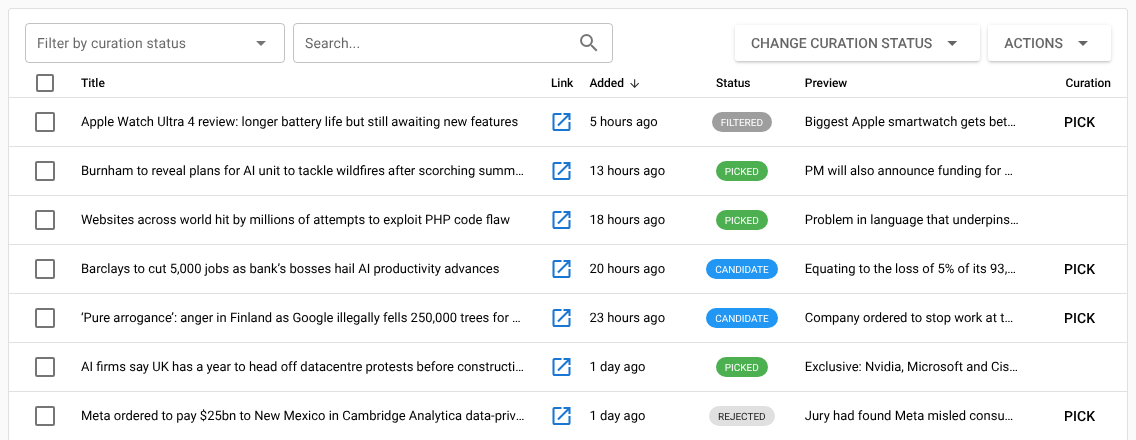
To change several items at once, tick them, open Change curation status and choose Candidate, Picked or Rejected, then click OK to confirm.
Picking and rejecting items doesn't regenerate your published files by itself. When you've finished, choose Actions → Rebuild Feed to publish your selection straight away. Otherwise it goes out the next time new items arrive.
The output includes the most recently added picked items, up to the feed's Number of items to include (see Generating RSS or JSON). Items are ordered by when Feed Control added them, not by when you picked them.
What curation mode changes
| Where | Normal feed | Feed in curation mode |
|---|---|---|
| Generated RSS/JSON | Items that passed your filters, plus items set to Keep visible | Only PICKED items |
| Bundles that include the feed | Same as the feed's RSS/JSON | Only PICKED items |
| Integrations (Slack, Discord, webhooks) | Each new item that passed your filters | Nothing is sent, including through bundles that include the feed |
| Email alerts | New items that passed your filters | Unchanged: new CANDIDATE and PICKED items |
| Widgets | Items that passed your filters | CANDIDATE and PICKED items |
| Dashboard Latest items | Items that passed your filters | CANDIDATE and PICKED items |
Tip: To send only your picked items to Slack, Discord or a webhook, turn on RSS output for the curated feed, add its generated RSS URL to Feed Control as a new feed, and connect your integrations to that feed. See Adding a feed and Integrations overview.
Filters in curation mode
Your keep and remove filters still run on new items. Items that pass become CANDIDATE and items that don't become FILTERED, so filters cut down the list you have to review.
Note: Feed Control keeps the 100 most recently added items for each feed, whatever their status, and only keeps the full content of the newest 50. On a busy feed, older picked items eventually age out of the output. See Managing feed items.
Hiding a feed from the dashboard
Hide items from dashboard is on the Source tab, not the Filters tab. It keeps all of a feed's items off the dashboard's Latest items list, which is useful for busy feeds that would crowd out everything else. It doesn't filter anything: the items still appear on the Feed Items tab, in your generated RSS/JSON, in email alerts and in integrations. See Source settings.
Examples
Keep one section of a site
A news site's feed includes every story, and you only want opinion pieces, whose URLs contain /opinion/.
- URL contains:
/opinion/
| Item URL | Status |
|---|---|
https://www.example.com/opinion/why-cities-need-more-trees |
OK |
https://www.example.com/news/election-results |
FILTERED |
Follow a topic and drop promotional posts
You want home energy stories but not sponsored posts or event listings.
- Text contains:
heat pump,solar panel - Text must not contain:
sponsored,webinar
| Item title | Status | Why |
|---|---|---|
| Grants for heat pumps extended | OK | "heat pump" matches inside "heat pumps". |
| Solar Panel prices fall again | OK | Case doesn't matter. |
| Sponsored: the best solar panels for 2026 | FILTERED | It contains a remove term, and remove filters win. |
| Energy bills to rise in January | FILTERED | No keep term in the title, description or content. |
Avoid short terms such as EV: it would also match "every" and "seven". Use electric vehicle instead.
Hand-pick stories for a newsletter
An editor chooses five stories a week from a busy feed whose titles all end in "| Example Times", and podcast episodes should never be considered.
- Curation mode: on
- Text must not contain:
podcast - Remove text from title:
| Example Times - On the Generate RSS/JSON tab, Number of items to include:
5
New items arrive as CANDIDATE, or as FILTERED if they mention a podcast, with the site name already removed from their titles. The editor clicks Pick on five stories, then chooses Actions → Rebuild Feed. The generated RSS now contains exactly those five stories. Next week, picking five more replaces them, because the output shows the five most recently added picked items.
Related
- Managing feed items: statuses, visibility overrides and the Pick button.
- Generating RSS or JSON: publishing filtered and curated feeds.
- Email alerts and Integrations overview: where filtered items are left out.
Can't find what you need? Contact support.