Feeds
Full-text extraction
Many feeds only include a summary or the first paragraph of each article. With full-text extraction, Feed Control visits each new item's web page and extracts the complete article. This page covers the settings on a feed's Full text tab, re-fetching content for items you already have, and what to do when extraction fails.
When to use full text
Turn on full text when a feed's items are cut short and you want:
- Filters that see the whole article. Text filters search an item's title, description and content, so with full text on they match words anywhere in the article. See Filters and curation.
- Full content in integrations. Webhooks receive the complete article. See Integrations overview.
- Full content in your generated feed. The RSS or JSON feed Feed Control generates includes the complete article. See Generating RSS or JSON.
If a feed already contains the full text, or you don't need it, leave full text off. To check what a feed contains, open one of its items from the Feed Items tab and look at Content.
Email alerts don't include the full article, whether or not full text is on. See Email alerts.
Turning on full text
When you add a feed, tick Fetch full text on the Filter and Preview step. It's ticked for you when you add a Google News feed. See Adding a feed.
For a feed you've already added:
- Open the feed from Feeds and go to the Full text tab.
- Click Edit.
- Tick Fetch full text. The other full-text options appear below it.
- Click Update Feed.
Full text applies to new items from the next check onwards. To extract items Feed Control has already collected, see Re-fetching content for existing items.
How extraction works
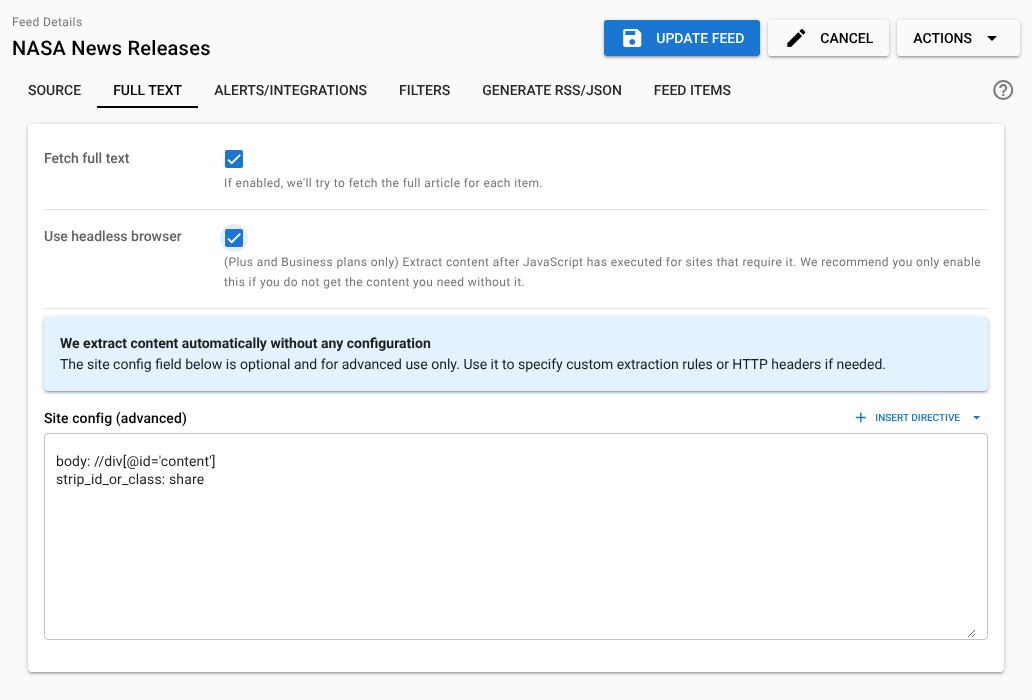
As the Full text tab puts it, We extract content automatically without any configuration. For each new item, Feed Control fetches the item's web page and works out which part is the article. Most sites need nothing more.
While an item is being extracted, its status on the Feed Items tab is PROCESSING. When extraction finishes it becomes DONE.
Extraction changes the item like this:
| Item field | With full text on |
|---|---|
| Content | Replaced with the article extracted from the web page. |
| Title, description, date, author | Taken from the article only where the source feed left them empty. An empty description is filled with a short excerpt from the article. |
| Image | The article's featured image, if the source feed didn't provide one. |
| Link | Unchanged, except for Google News items, which are changed to the publisher's own article address. |
Feed Control also records the article's final address after any redirects.
Filters are applied once the article has been extracted. After a batch of new items has been processed, Feed Control updates your generated RSS or JSON feed, sends integration messages and sends new-item email alerts. Extraction takes a little time, so these happen slightly later than for feeds without full text.
Use headless browser
Plus and Business plans: Use headless browser is only available on Plus and Business plans.
Some sites build their pages with JavaScript, so the article isn't in the page Feed Control first receives. With Use headless browser ticked, Feed Control loads each article in a browser and extracts the content after JavaScript has run.
The option appears on the Full text tab once Fetch full text is ticked. Only turn it on if you don't get the content you need without it. It affects article extraction only, not how the feed itself is fetched.
If your account moves to the Basic plan while a feed uses the headless browser, the feed stops updating and shows Updates paused — headless browser fetching requires a Plus or Business plan. To resume updates without upgrading:
- Open the feed's Full text tab and click Edit.
- Untick Use headless browser.
- Click Update Feed.
Note: Use headless browser is only shown while Fetch full text is ticked. If you've already turned off full text, tick Fetch full text so the option appears, untick Use headless browser, then untick Fetch full text again before clicking Update Feed.
Site config (advanced)
Plus and Business plans: On the Basic plan, the Full text tab shows Site config is only available for Plus and Business plans instead of the site config box. A site config added before an account moved to Basic keeps working and can still be edited.
A site config is a set of rules for one feed that tells the extractor which part of the page is the article, what to strip out, and which HTTP headers to send. Use it when automatic extraction picks the wrong part of the page, includes clutter such as promotions, or the site needs particular headers. The rules apply to every article Feed Control extracts for the feed.
To add a site config:
- Open the feed's Full text tab and click Edit. Fetch full text must be ticked.
- Type your rules into Site config (advanced). To start from a template, click Insert directive and choose a directive: Feed Control adds an example to the end of the box, with comments showing other ways to use it. In the menu, click the info button next to a directive for a description and examples.
- Click Update Feed.
- Check the result by re-fetching a few items (see Re-fetching content for existing items).
Directives
Put one directive per line. Lines starting with # are comments. You can use the same directive more than once.
| Directive | What it does |
|---|---|
body: [XPath] |
The element that contains the main article content. If you list several, they're tried in order until one matches. If none matches, or you leave it out, the content is detected automatically. To join several elements, separate them with |. |
strip: [XPath] |
Removes any matching elements and everything inside them. |
strip_id_or_class: [string] |
Removes any element whose id or class contains this text. |
strip_image_src: [string] |
Removes any image whose src contains this text. |
http_header([header name]): [header value] |
Sends an extra HTTP header with requests to the site. Only user-agent, cookie, referer and accept-language are accepted. |
Example
# The article is inside this element
body: //div[@id='content']

# Remove promotional paragraphs and share buttons
strip: //div[@id='content']//p[@class='promo']
strip_id_or_class: share

# Remove tracking images
strip_image_src: /tracker/

# Skip a cookie wall
http_header(cookie): euConsent=true
Re-fetching content for existing items
Turning on full text, or changing the site config, headless browser or proxy setting, only affects new items. To extract items you already have again:
- Open the feed's Feed Items tab and tick the items.
- Open Actions and choose Re-fetch content. This option is only listed when Fetch full text is on.
- In Fetch item URL content and overwrite:, tick the fields to replace: Title, Date, Author, Description (excerpt) and Full item content. Only Full item content is ticked to begin with.
- Click Re-fetch.
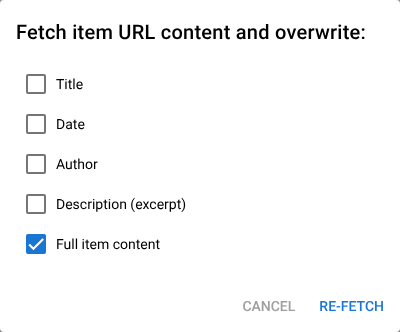
The items go back to PROCESSING and are extracted again with the feed's current settings. Ticked fields are overwritten. Unticked fields keep their current values, although an empty title, date, author or description is still filled in. Filters are applied again afterwards.
Re-fetching doesn't send email alerts or integration messages again. It also doesn't update your generated RSS or JSON feed straight away: to do that, clear the item selection and choose Actions > Rebuild Feed at the top right of the feed. See Managing feed items.
Cleaning up the HTML
Feed Control stores the article as the extractor returns it. To publish a stripped-down version that's safe to display, use Clean HTML and Remove images as part of cleanup on the Generate RSS/JSON tab. They only change the RSS or JSON feed Feed Control generates, not the stored items. See Generating RSS or JSON.
Webhook payloads always include a cleaned-up HTML version and a plain-text version alongside the original content. See Request and payload reference.
When extraction fails
If Feed Control can't fetch an article, or finds no content in it, it tries again after a short wait, up to three attempts in total. If every attempt fails:
- the item's status on the Feed Items tab becomes FAILED
- the item isn't included in your generated RSS or JSON feed or in email alerts
- Event Logs shows a failed Extractions entry with the message Couldn't extract the full text of this article. Open the entry and click Retry Event to try again.
See Event logs. To get a daily email when extractions or other events fail, see Failure notifications.
If extraction keeps failing for a site, try these:
| Problem | Try |
|---|---|
| The page builds its content with JavaScript | Tick Use headless browser. |
| The site blocks or doesn't respond to our requests | Turn on proxy routing. |
| The wrong part of the page is extracted, or there's clutter | Add body or strip rules in a site config. |
| The site shows a cookie or consent wall | Add an http_header(cookie) rule in a site config. |
If you're still stuck, contact support and tell us which feed it is.
Can't find what you need? Contact support.